


Meta ads not spending usually comes down to one of three layers: an account-level block (billing, spending limits, Account Quality), an auction constraint (bid caps, budgets too tight to compete), or a signal problem (tiny audiences, broken tracking, or a campaign stuck in Learning). The fastest way to narrow it down is to open Ads Manager, read the exact delivery status, and check Billing and Account Quality first. Those two checks alone resolve most zero-spend cases within minutes.
TL;DR:
- Most causes of zero ad spend are due to billing issues, account restrictions, or account quality problems that should be checked first in Ads Manager.
- Bid caps, cost controls, and pacing settings often cause under-spending; testing with no caps for 48 to 72 hours reveals the true market price.
- Audience size below 50,000 or heavily layered exclusions can stall delivery; broadening targeting and checking overlap can restore flow.
- Insufficient optimization events, especially fewer than 50 per week, limit learning, and switching to higher-frequency proxy events can help improve delivery.
- Sequential fixes and measuring results over a 7 to 14-day window are essential, as changing multiple variables simultaneously hampers identifying the true cause.
Table of Contents
- What to check first when Meta ads aren’t spending
- Account billing, spending limits and Account Quality: immediate fixes
- Bid caps, cost controls and pacing: how auction settings cause under‑spend
- Fixing audience size, over-narrow targeting and hidden overlap
- Learning phase, signal quality and the events that starve delivery
- The fix sequence: one change at a time, in this order
- How to run a proper test and know when it’s actually fixed
- Oxedent’s routine for catching zero‑spend problems before they cost you a week
- Why sequencing beats speed when Meta ads stop spending
- Quick links: where to check delivery status and tracking health
- Sources
What to check first when Meta ads aren’t spending
You don’t need to guess your way through this. Work through the checks below in order, and you’ll usually know which layer is broken within 20 to 30 minutes.
- Read the delivery label, word for word. Ads Manager will show one of a handful of statuses (Active, In review, Rejected, or Not delivering), and each one points to a different fix. Meta’s own guidance on campaigns that haven’t delivered enough since starting is the right place to start when the label itself isn’t self-explanatory.
- Open Account Quality. This page flags restrictions you might otherwise miss entirely, because a restricted account can still show “Active” campaigns that simply never enter the auction.
- Check Payment Settings. Confirm your payment method is valid, look for outstanding invoices, and check whether you’ve hit an account spending limit or an early billing threshold.
- Pull up Delivery Insights. Look specifically at Auction Competition and Audience Size figures, both found inside the ad set’s delivery diagnostics.
- Visit Events Manager. Confirm your pixel or Conversions API integration is actually firing, not just installed.
- Review Change History. Look for recent edits, especially ones stacked on top of each other, since multiple simultaneous changes make the real cause almost impossible to isolate.
Practitioner audits across the industry consistently point to the same shortlist of culprits: tracking breakage, billing failures, bid or budget constraints, audience problems, and disruption after a recent change. The core diagnostic process used across the industry treats these five categories as the backbone of almost every audit, and that ordering isn’t arbitrary. If you find a billing hold or an Account Quality restriction, stop there. Fix that before you touch a single bid, budget, or audience setting, because no amount of auction optimisation will spend a penny while the account itself is blocked.
Pro Tip: Screenshot the exact delivery label and any Account Quality warning before you change anything. If you end up escalating to Meta Business Support, having a timestamped record speeds up the conversation considerably.
Account billing, spending limits and Account Quality: immediate fixes
Payment failure is the single most frequent reason a Meta ad account holds at zero spend, across account types and budget sizes, according to industry troubleshooting data. A card that’s expired, a bank that’s blocked an unfamiliar charge, or an unprocessed billing threshold on a newer account can all pause delivery completely, often without a loud warning inside the interface.
New accounts face an extra wrinkle: Meta sets an initial billing threshold that must be met before the account moves to its normal, higher recurring threshold. Until that first amount clears, spending can stay artificially capped even when everything else looks correctly configured.
Work through this shortlist before anything else:
- Confirm your payment method hasn’t expired and hasn’t been declined by your bank for suspected fraud.
- Check for outstanding invoices under Payment Settings, particularly if you’re on manual invoicing rather than automatic card billing.
- Look at your account spending limit. It’s easy to set one during account creation and forget it exists entirely.
- Check lifetime budgets on individual campaigns. A lifetime budget that’s already been spent will show as Active while delivering nothing further.
- If Account Quality flags a restriction, read the specific reason given rather than assuming it’s a blanket ban.
Community reports on advertiser forums back this up anecdotally too. Threads describing accounts stuck at zero spend while campaigns appear active show the same pattern again and again: a billing hold or review loop that Ads Manager doesn’t surface prominently.
If none of the above resolves it, contact Meta Business Support directly. Gather your account ID, screenshots of the delivery status and Account Quality page, and a clear timeline of when spend stopped. Vague tickets get vague, slow responses. Specific ones with dates and screenshots move faster.
Bid caps, cost controls and pacing: how auction settings cause under‑spend
Meta’s auction doesn’t award impressions to the highest bidder alone. It weighs your bid, estimated action rates, and ad quality together, and if your bid cap or cost cap sits below what that combination needs to compete, you simply lose the auction, repeatedly, silently.

A cost cap or bid cap set too conservatively is one of the most common reasons a campaign spends a fraction of its budget while showing full delivery elsewhere. Target CPA settings suffer the same fate: set the target too low relative to your market, and Meta would rather spend nothing than spend inefficiently.
The fix is to test, not to guess:
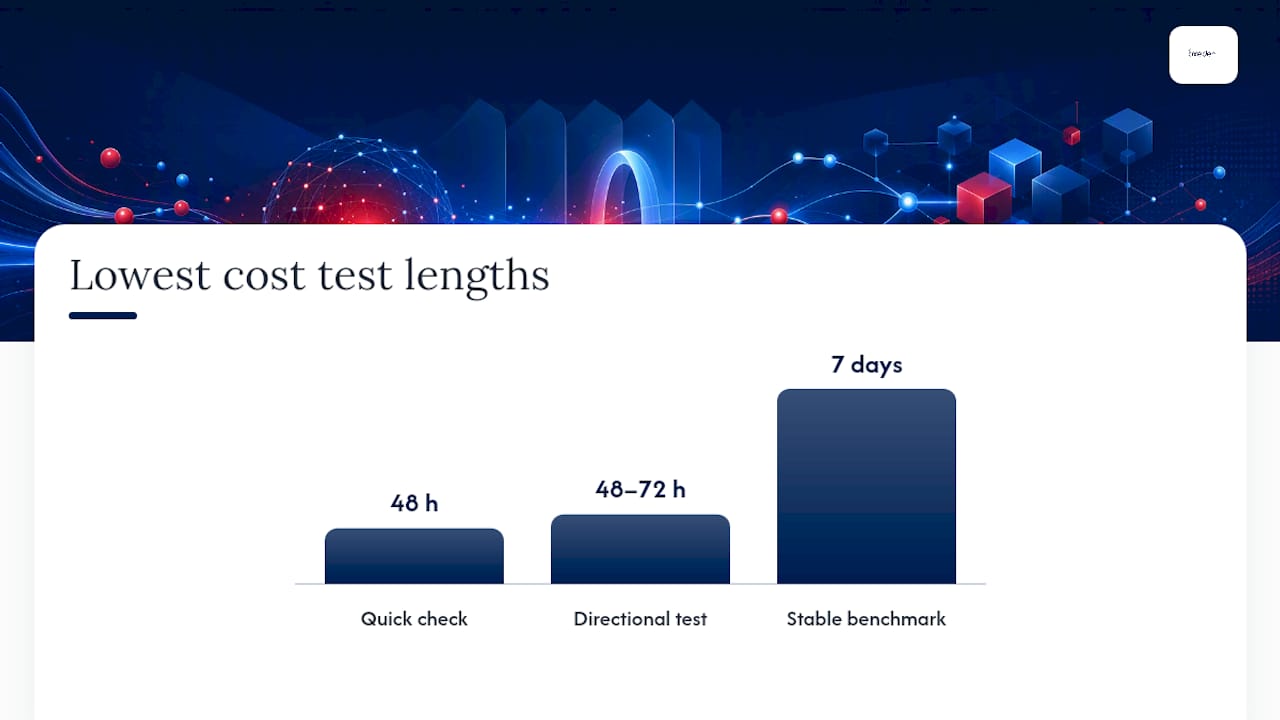
- Switch the campaign temporarily to Lowest cost with no cap, which lets Meta bid freely and reveals the real market clearing price.
- Run that test for 48 to 72 hours for a directional read, and a full 7 days if you want a stable benchmark rather than a rough signal, a timeline supported by practitioner testing across multiple accounts.
- Once you know the real clearing price, reintroduce a cost cap set closer to that figure rather than an arbitrary round number.
- Check whether you’re running Campaign Budget Optimisation (CBO) or ad set-level budgets (ABO). CBO can quietly funnel almost all spend into one winning ad set, making the others look broken when they’re simply losing an internal contest for budget.
- If you’re on a lifetime budget with a custom delivery schedule, check whether front-loading or day-parting settings are restricting when Meta is even allowed to spend.
Pro Tip: Don’t judge a Lowest cost test by cost-per-result alone. In the first 48 hours, you’re checking whether spend flows at all, not whether it’s efficient yet.
Fixing audience size, over-narrow targeting and hidden overlap
An estimated reach sitting below roughly 50,000 people is a reliable warning sign for conversion-optimised campaigns, because Meta simply doesn’t have enough eligible people to run a healthy auction. Below that threshold, delivery often stalls even when everything else in the account is configured correctly.
- Strip out AND logic in detailed targeting. Layering three or four interest categories with “must match all” logic can shrink a seemingly broad audience down to a few thousand people without you realising it.
- Turn on Detailed Targeting Expansion temporarily during diagnosis. It lets Meta reach slightly outside your defined targeting when it improves results, which is often enough to unstick a stalled ad set.
- Build a broader lookalike, at minimum a 5% to 10% audience, purely as a diagnostic test to confirm whether audience size was the actual constraint.
- Check for exclusion stacking. Every exclusion (past purchasers, existing leads, competitor lookalikes) shrinks the pool further, and three or four stacked together can gut an audience that looked spacious on paper.
- Run the Audience Overlap tool across your active ad sets. Two ad sets bidding for the same people inside the same account effectively compete against each other, and Meta’s auction sometimes responds by starving one of them entirely.
Consolidating overlapping ad sets into one, and giving Meta a genuinely reachable pool, is usually the quickest way to see impressions start flowing again.
Learning phase, signal quality and the events that starve delivery
The Learning phase status and its unhappier cousin, Learning Limited, both point to the same root issue: Meta doesn’t have enough optimisation events to learn who to show your ad to. The widely used rule of thumb is roughly 50 optimisation events per ad set per week. Fall meaningfully below that, and delivery gets throttled while the system waits for signal it isn’t getting.
If your primary conversion event (purchase, typically) generates fewer than 50 events a week, the fix isn’t to wait indefinitely. It’s to test a higher-frequency proxy event instead:
- Switch optimisation to Add to Cart or Initiate Checkout temporarily, since both generate volume faster than Purchase on lower-traffic accounts.
- Give the new event 3 to 7 days before judging it, matching the stabilisation window Meta itself recommends after any meaningful change to a campaign.
- Check Events Manager for gaps between browser-side and server-side signal, particularly on iOS traffic, where attribution has been degraded for several years now by platform-level privacy restrictions.
Pro Tip: If Events Manager shows purchases happening on your site but far fewer registering in Meta, that gap is your signal problem, not your audience problem. Fix tracking before you touch targeting.
The fix sequence: one change at a time, in this order
Resist the urge to fix everything simultaneously. Change one variable, note the exact time you made it, and measure before moving to the next.
- Clear any billing or Account Quality block first. If that was genuinely the cause, delivery often resumes within minutes to an hour.
- Remove bid or cost caps and switch to Lowest cost. Expect a directional signal within 24 to 48 hours.
- Broaden the audience or strip back exclusions. Improvements typically show within hours, certainly inside 48.
- Fix tracking or switch the optimisation event. Give this one 24 to 72 hours to show visible change in Events Manager.
Log every change in Change History as you go. Then, whichever fix you’ve just applied, wait a full 7 to 14 days before drawing firm conclusions, because Meta’s smart-bidding systems need that window to restabilise after a meaningful adjustment, a point Meta’s own guidance on changes and learning makes explicitly. Judging a fix on day two is one of the most common ways advertisers convince themselves a working solution has failed.
How to run a proper test and know when it’s actually fixed
A test only means something if you isolate the variable. Make one documented change, wait the full 7 to 14 days, then compare against the equivalent period before the change, not against yesterday.
Track the same handful of numbers every time:
- Spend and impressions, checked daily rather than weekly.
- CPM, which will often move before conversion volume does.
- Auction Competition, visible inside Delivery Insights.
- Actual conversion events registering in Events Manager, not just events you assume are firing.
Pro Tip: Set an alert for any 25% deviation against your trailing 7-day average on spend or CPM. Catching drift early, during a routine weekly health check, beats discovering a dead campaign three weeks in.
Oxedent’s routine for catching zero‑spend problems before they cost you a week
Oxedent runs a 10-point weekday health check across every managed account: billing status, delivery labels, pixel activity, audience size, bid caps, and creative quality, among others. It’s a five-minute scan that catches most of what’s covered above before it becomes a week-long mystery.
Some situations, though, are worth escalating rather than troubleshooting solo:
- Performance has dropped more than 40% with no obvious cause you can trace.
- Spend has sat at or near zero after you’ve worked through the sequential fixes above.
- Account Quality shows a restriction you can’t clear yourself.
If you’re seeing any of those, an ecommerce PPC audit will usually find the blocker faster than another round of guesswork.
Why sequencing beats speed when Meta ads stop spending
The instinct when spend hits zero is to change five things at once, budget, bidding, creative, audience, all in the same sitting. That’s the single most common mistake we see, and it’s understandable. It also guarantees you’ll never know which change actually worked, which means you’ll repeat the same panic next time delivery stalls.
A documented, one-variable-at-a-time approach feels slower in the moment. It isn’t, because it stops you from undoing your own fix three days later by “optimising” something else on top of it.
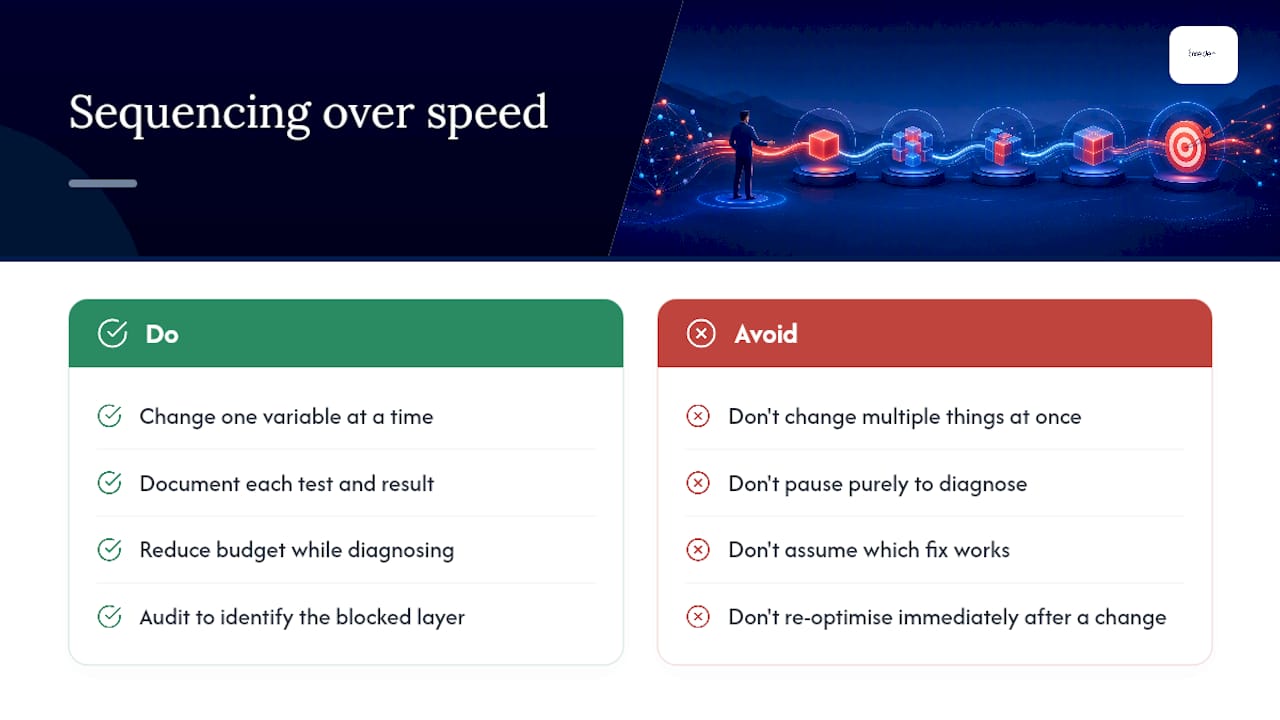
On budget versus pausing: don’t pause a campaign purely to diagnose it unless Account Quality has genuinely restricted the account. Pausing resets learning entirely, so you often trade a delivery problem for a fresh Learning phase once you unpause. Reducing budget while you diagnose is usually the better move, since it keeps signal flowing without risking overspend on a broken auction.
A proper audit should tell you, within days, which of the layers, account, auction, audience, or tracking, is actually responsible, and give you a realistic recovery timeline rather than a vague promise. Most accounts we look at recover meaningful delivery within one to two weeks once the actual blocker is identified correctly the first time.
— Biplab
Quick links: where to check delivery status and tracking health
- Ads Manager delivery diagnostics for reading exact delivery labels.
- Events Manager, inside Ads Manager, for pixel and Conversions API activity.
- Account Quality, inside Business Settings, for restriction checks.
- Retail media and cross-channel guidance for advertisers running budget across multiple platforms.
- Oxedent’s ecommerce ad account audit checklist for a fuller walkthrough of tracking, bidding, and budget checks.
Sources
- Your campaign hasn’t delivered enough since it started
- Meta ads not spending — core diagnostic process