


Negative keywords stop your ads from appearing on irrelevant searches, protect your budget from wasted clicks, and tell Google’s bidding algorithms exactly which audiences you want to reach. The result is a tighter, more profitable account: lower cost per click on the queries that matter, a higher click-through rate, and a cleaner Quality Score signal. Think of them less as a blocklist and more as a strategic brief you hand to the machine.
Start here:
- Pull your search terms report right now, filter for spend with zero conversions over the last 30 days (or every 7–14 days for high-volume accounts), and flag the top ten offenders.
- Add at least one high-confidence negative today, using the correct match type (more on that shortly).
- Watch your CTR and cost per conversion over the next 7–14 days to measure the impact.
Key takeaways
Negative keywords are strategic signals that shape algorithmic intent, reduce wasted spend, and improve conversion rate when managed with a consistent, data-led process.
| Point | Details |
|---|---|
| Negatives shape algorithm intent | Every exclusion tells Google’s bidding system who your customer is, not just who to avoid. |
| Review every 7–14 days | A fixed cadence prevents budget leakage and catches harmful queries before they compound. |
| Match type precision matters | Negative broad, phrase, and exact behave differently; add plurals and word-order variants separately. |
| Use shared lists for scale | Consistent naming conventions and shared lists reduce human error across multi-campaign accounts. |
| Oxedent manages the full cycle | Oxedent’s ecommerce PPC service covers audit, list build, ongoing review, and monthly waste reporting. |
Table of Contents
- What role do negative keywords play in your PPC account?
- Why negative keywords deliver real benefits for your campaigns
- How do negative match types work, with examples?
- When and where should you apply negative keywords?
- How do you find the right negative keywords?
- How do you add negative keywords in Google Ads?
- Managing negatives at scale: tools, scripts, and automation
- What are the most common negative keyword mistakes?
- What review cadence and process should you follow?
- Starter negative keyword lists and CSV templates
- How Oxedent manages negative keywords in ecommerce PPC accounts
- The strategic case for treating negatives as a signal, not a filter
- Oxedent’s managed PPC service for ecommerce brands
- Sources
What role do negative keywords play in your PPC account?
Negative keywords are terms you explicitly tell Google Ads not to trigger your adverts for. Where a positive keyword says “show my ad when someone searches this,” a negative keyword says “never show my ad when this word or phrase appears.” Think of them as a sieve: your positive keywords cast the net, and your negatives filter out the debris before it reaches your budget.
The mechanics matter here. According to Google Ads Help, negative match types behave differently from their positive counterparts. Negative broad match, for instance, does not block close variants the way positive broad match expands to them. That distinction catches a lot of advertisers off guard. Negatives also apply differently depending on campaign type: on Search campaigns they work as you’d expect, but on Display and Video campaigns the logic shifts, so a term blocked on Search may still trigger a Display placement.
The deeper point is that negative keywords are strategic decisions that shape how the algorithm interprets your campaign’s intent. They are not a one-time setup task. Treat them as a living signal you refine continuously, and the algorithm rewards you with better auction targeting.
Why negative keywords deliver real benefits for your campaigns
Well-managed negatives produce measurable gains across every performance metric that matters to an ecommerce advertiser.
The core benefits:
- Reduced wasted spend: Every irrelevant click costs money. Blocking non-converting queries keeps budget flowing to searches that actually convert.
- Higher click-through rate: Fewer irrelevant impressions means a higher proportion of people who see your ad are genuinely interested, which lifts CTR.
- Improved Quality Score: Google rewards relevance. When your ad consistently appears for tightly matched queries, your Quality Score rises, which in turn lowers your cost per click. Semrush’s negative keyword guide confirms that preventing ads from showing for irrelevant searches is one of the clearest paths to a stronger Quality Score.
- Higher conversion rate: Traffic quality improves when you filter out informational, navigational, and bargain-hunting queries that were never going to buy.
- Brand protection: Appearing alongside searches for “cheap knock-off [your brand]” or toxic adjacent terms damages perception. Negatives keep your creative away from those contexts.
- Cleaner Shopping, DSA, and Performance Max coverage: These campaign types use broad automated matching. Without negatives, they will spend on almost anything tangentially related to your product feed.
To make this concrete: imagine a premium skincare brand spending £5,000 per month on Google Ads. If a significant portion of clicks come from searches containing “free samples,” “DIY recipe,” or “cheap dupe,” that budget may be going to visitors with near-zero purchase intent. Blocking those terms with a handful of negatives redirects that budget to high-intent buyers. The numbers above are illustrative, but the pattern is consistent across ecommerce accounts of every size.
Protecting your brand reputation is just as important as protecting your budget. A single toxic query appearing in your search terms report, left unchecked, can serve your ad alongside content that undermines your brand positioning.
How do negative match types work, with examples?
Understanding the three negative match types is where most advertisers gain a real edge. The syntax and logic differ meaningfully from positive match types, and choosing the wrong one blocks either too much or too little.
Google’s documentation is the authoritative reference here. The table below captures the practical differences.
Concrete examples for ecommerce and services:
- Negative broad
freeon a premium fashion campaign blocks “free delivery shoes,” “free returns trainers,” and dozens of similar queries in one entry. - Negative phrase
"how to clean"on a shoe retailer’s campaign prevents informational queries like “how to clean suede shoes” from triggering product ads. - Negative exact
[nike shoes]on a multi-brand retailer’s generic campaign stops that specific branded query from cannibalising a dedicated Nike ad group. - Negative phrase
"jobs"on a B2B software campaign blocks “marketing software jobs,” “CRM jobs London,” and similar career queries. - Negative broad
cheapon a luxury goods campaign filters out bargain-intent traffic across all query structures. - Negative exact
[what are running shoes]on a footwear campaign blocks that single informational query without touching “best running shoes for flat feet.”
Pro Tip: Negative match types do not block plurals, misspellings, or close variants automatically. If you add [free shoe] as a negative exact, free shoes can still trigger your ad. Add both singular and plural forms as separate entries, and check word order carefully — "cheap shoes" as a negative phrase will not block “shoes cheap.”
When and where should you apply negative keywords?
The level at which you apply a negative determines how broadly it suppresses traffic. Getting this wrong is one of the most common causes of accidental traffic drops.
Account level is for terms that are irrelevant to your entire business, full stop. If you sell physical products and never offer jobs, “careers,” “salary,” and “vacancies” belong here. These go into a shared negative keyword list applied across all campaigns, so you never have to add them again.
Campaign level is for category exclusions specific to one product range or audience. A footwear retailer running separate campaigns for running shoes and formal shoes might add “formal” as a negative to the running campaign and “trainers” to the formal campaign. This prevents cross-contamination without affecting the whole account.
Ad group level is for fine-grained control within a campaign. If your “women’s trainers” ad group keeps triggering for “men’s trainers,” adding “men’s” as a negative at ad group level solves it without touching other ad groups in the same campaign.
Timing matters too. At launch, add a starter list of obvious irrelevant terms before you spend a penny: job-related terms, informational prefixes like “what is” and “how to” (if you’re not targeting informational intent), and competitor brand names you don’t want to appear alongside. During scaling, review the search terms report every 7–14 days and add negatives based on real spend data. During optimisation phases, go deeper: look for patterns in low-converting query clusters rather than individual terms.
One important caution: adding negatives too aggressively during a growth phase can starve a campaign of the volume it needs to exit the learning period. Tie every negative decision back to your account goals, not just a single metric like CTR.
How do you find the right negative keywords?
The search terms report is your primary source, but it is not your only one. Here is a reproducible workflow.
- Open the search terms report in Google Ads (under Keywords > Search Terms). Set the date range to the last 30 days, or 7–14 days for high-volume accounts.
- Filter for cost with zero conversions. Sort by cost descending. Any query that has spent more than your target cost per acquisition without converting is a candidate.
- Filter for low CTR. Queries with many impressions but very few clicks signal that users saw your ad and decided it was irrelevant. These are prime negative candidates.
- Look for intent mismatches. Queries containing “free,” “cheap,” “DIY,” “how to,” “what is,” “review,” “jobs,” or competitor brand names rarely convert for product-focused campaigns.
- Flag competitor queries carefully. Sometimes a competitor’s brand name appearing in your search terms is worth keeping if it converts. Check conversion data before blocking.
- Apply n-gram analysis for scale. Rather than reviewing each query individually, n-gram analysis surfaces single words or tokens that appear across hundreds of low-volume queries. Blocking one token can eliminate dozens of wasteful query variations at once.
Google recommends using the search terms report as the primary method for generating negative keyword ideas, and notes that negatives added directly from that report default to negative exact match unless you manually change the match type.
Beyond the search terms report:
- Site search logs: If your website has internal search, export the queries visitors typed. Searches for products you don’t stock are immediate negative candidates.
- CRM and support transcripts: Common customer questions reveal how people describe your product category, including terms that don’t align with your offering.
- Analytics landing pages with high bounce rates: Traffic landing on product pages and bouncing immediately often came from mismatched queries. Cross-reference with the search terms report to find the culprits.
Pro Tip: Use smart keyword research techniques alongside your search terms report. Keyword tools can surface related terms you haven’t yet received traffic for, letting you add proactive negatives before budget is wasted.
How do you add negative keywords in Google Ads?
Implementation is straightforward once you know the steps. The risk lies in applying the wrong match type or creating conflicts with your positive keywords.
Adding negatives via the Google Ads UI:
- Sign in to Google Ads and navigate to the campaign or ad group where you want to add negatives.
- Click Keywords in the left-hand menu, then select Negative Keywords.
- Click the + button to add new negatives.
- Choose the level: campaign or ad group.
- Type each negative keyword, using the correct syntax: no brackets for broad, quotes for phrase, square brackets for exact.
- Click Save.
Adding negatives via shared lists (recommended for scale):
- Go to Tools & Settings > Shared Library > Negative Keyword Lists.
- Click + to create a new list. Name it clearly (see naming conventions below).
- Add your negative keywords to the list with correct match types.
- Navigate to the campaigns you want to apply the list to, go to Negative Keywords, and click Apply to campaigns.
Adding negatives via CSV import:
- Download the Google Ads Editor or use the bulk upload function in the UI.
- Format your CSV with columns for Campaign, Ad Group (if applicable), Keyword, and Match Type.
- Upload and review the preview before applying.
Shared list naming conventions keep large accounts manageable. Use a consistent format such as:
[GLOBAL] Irrelevant intent — jobs/careers/salary[GLOBAL] Informational — how to/what is/DIY[CATEGORY] Footwear — competitor brands[BRAND] Premium — cheap/free/discount
Shared lists reduce human error and make it far easier to apply consistent exclusions across campaigns. For a deeper look at how search exclusions work across campaign types, including Performance Max, it’s worth reading the dedicated guide.
Pro Tip: Before importing a CSV, run a conflict check. A negative keyword that exactly matches one of your positive keywords will prevent that keyword from ever triggering an ad. Google Ads Editor has a built-in conflict checker — use it every time you import a new list.
Managing negatives at scale: tools, scripts, and automation
Manual review works for small accounts. For ecommerce brands running multiple campaigns across Shopping, Search, and Performance Max, you need a more systematic approach.
Your options, from simplest to most sophisticated:
- Manual shared lists: The baseline. Centralise your negatives in shared lists and apply them consistently. Low overhead, full human control, but slow to update.
- Google Ads automated suggestions: Google occasionally surfaces negative keyword suggestions in the Recommendations tab. Treat these as candidates, not instructions. Review each one before applying.
- Google Ads scripts: Scripts can automate the search terms report review, flag queries above a cost threshold with zero conversions, and even add negatives automatically. They run on a schedule you set, typically daily or weekly.
- Automated rules: Simpler than scripts, automated rules can pause keywords or send alerts when spend thresholds are crossed. They don’t add negatives directly but can flag candidates for human review.
- Third-party tools: Platforms like Skai offer more advanced negative keyword management, including automated surfacing of irrelevant queries at scale. Skai’s work with brands like Clinique demonstrates how automated negative management can reduce wasted spend across large product catalogues. These tools are particularly useful for enterprise accounts where manual review of thousands of search terms per week is impractical.
- Hybrid human + AI workflow: Industry experts recommend using automation to surface candidates but retaining human approval before applying changes. This prevents the overblocking that fully automated systems can cause.
Performance Max and DSA require special attention. Negatives on these campaign types apply differently from standard Search campaigns. On Performance Max, you add negatives at campaign level, but the system’s automated asset matching means some queries may still slip through. For Shopping campaigns, auditing your campaign structure regularly is the most reliable way to catch mismatches.
Automation checklist:
- Automate: flagging queries above cost threshold with zero conversions, weekly search terms exports, and shared list updates for obvious irrelevant terms.
- Human-review: any negative that could block a high-volume query, brand-adjacent terms, and any automation output before it goes live.
- Safeguards: maintain a changelog of every negative added, set a minimum impression threshold before flagging a query, and never automate deletions without a review step.
What are the most common negative keyword mistakes?
Even experienced PPC managers make these errors. Knowing them in advance saves you from diagnosing a traffic drop weeks after the damage is done.
Common mistakes to avoid:
- Over-negating: Adding too many negatives, especially during a growth phase, starves campaigns of volume. A campaign that can’t gather enough data can’t optimise. Start with high-confidence negatives and expand gradually.
- Wrong match type: Using negative exact when you need negative phrase, or negative broad when you only want to block a specific phrase. The result is either too little blocking or accidental suppression of valuable queries.
- Assuming close variants are blocked: Negative match types do not block close variants, unlike positive match types. If you add
[running shoes]as a negative exact, “running shoe” (singular) can still trigger your ad. - Adding negatives too early: Blocking terms before you have conversion data means you’re guessing. A query that looks irrelevant might convert at a strong rate. Let data guide you.
- Conflicts with positive keywords: A negative that matches one of your own positive keywords will prevent that keyword from ever triggering. This is one of the hardest issues to diagnose because the campaign simply goes quiet.
- Applying at the wrong level: A campaign-level negative that should have been ad-group level can suppress traffic across an entire campaign when you only wanted to control one ad group.
Quick audit steps:
- Run a conflict check in Google Ads Editor monthly.
- Filter your search terms report for queries with strong conversion rates that have recently stopped appearing. A new negative may have blocked them.
- If traffic drops suddenly after a negative list update, pause the list and monitor for 48 hours to confirm the cause.
- When removing a negative you suspect is causing harm, do it in stages: move it from account level to campaign level first, then remove it entirely if the data supports it.
Log every change with a date and reason. A changelog is the single most useful tool for diagnosing unexpected traffic shifts.
What review cadence and process should you follow?
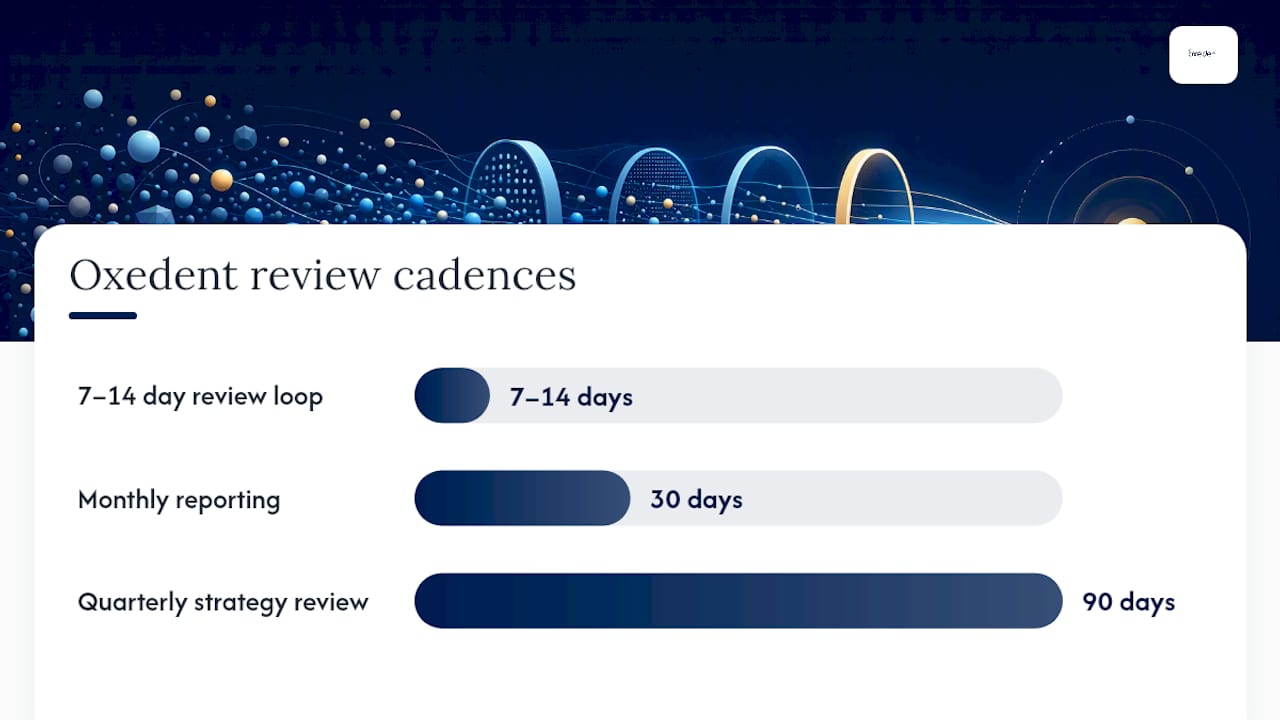
Consistency is what separates accounts that compound gains from those that plateau. Industry guidance supports a 7–14 day review cadence for search term reports (and for high-volume accounts, reviews can be performed every 7–14 days), with a deeper monthly audit for shared lists and structural decisions.
Recommended cadence:
- Every 7–14 days (or more frequently for high-volume accounts): Review the search terms report. Flag queries with spend and no conversions. Add high-confidence negatives. Note any unexpected traffic changes.
- Monthly: Audit shared lists for outdated or conflicting entries. Review the conflict report. Check whether any negatives are suppressing previously converting queries. Update category lists for seasonal changes.
- Quarterly: Review the entire negative keyword strategy against account goals. Are your negatives still aligned with your product range and target audience? Have you launched new products that need new exclusions?
Role matrix for agency and in-house teams:
- Daily monitoring: PPC executive or account manager reviews spend anomalies and flags unusual query patterns.
- Shared list approvals: Senior PPC manager or account director reviews and approves any additions to account-level shared lists.
- Imports and bulk changes: Dedicated ops or the account manager runs imports via Google Ads Editor after conflict checks.
- Automation sign-off: Head of paid media or equivalent reviews automation outputs weekly before they go live.
KPIs to track after negative keyword changes:
- Wasted spend (cost on queries with zero conversions) as a percentage of total spend.
- CTR trend over the 14 days following a change.
- Conversion rate on remaining traffic.
- Impression share lost to budget (a sudden rise may indicate over-negating).
- Total impressions filtered by negative keywords (visible in the search terms report).
Starter negative keyword lists and CSV templates
These lists give you a working starting point. Adapt them to your category and UK market context before importing.
Premium ecommerce (exclude bargain and non-commercial intent):
free,cheap,discount,voucher,coupon,promo code,dupe,knock-off,second hand,used,refurbished,wholesale,bulk buy,free samples,DIY,how to make,recipe
B2B services (exclude job-seekers and students):
jobs,careers,vacancy,vacancies,salary,apprenticeship,internship,graduate,entry level,course,training,certification,what is,definition,meaning,examples of,history of
Informational and test queries (exclude when not targeting informational intent):
what is,how to,why does,tutorial,guide,explained,for beginners,vs,comparison,review,reviews,reddit,forum,wiki,wikipedia
CSV import template snippet:
Campaign,Ad Group,Keyword,Match Type
All Campaigns,,free,Negative Broad
All Campaigns,,cheap,Negative Broad
All Campaigns,,jobs,Negative Broad
All Campaigns,,"how to",Negative Phrase
All Campaigns,,[what is running shoes],Negative Exact
A few notes on using this template in the UK market. Add UK-specific bargain terms: “quid,” “pennies,” “bargain,” and “clearance” appear frequently in British search queries and are worth including for premium brands. Add plural forms separately: [running shoe] and [running shoes] are treated as different entries. For Shopping and Performance Max campaigns, apply negatives at campaign level and test each list on a single campaign before rolling out account-wide.
Maintaining master negative lists and reusing them across clients is a well-established best practice that saves significant time when managing multiple accounts.
How Oxedent manages negative keywords in ecommerce PPC accounts
Oxedent’s approach to negative keyword management is built around a structured process that runs continuously rather than in occasional bursts.
The Oxedent process flow:
- Discovery: At account onboarding, Oxedent audits the existing negative keyword lists, checks for conflicts, and identifies obvious gaps using the search terms report and client product data.
- Initial list build: A starter set of high-confidence negatives is applied before any significant spend occurs. These cover global irrelevant intent (jobs, informational queries, bargain terms) and category-specific exclusions based on the client’s product range.
- 7–14 day review loop: The search terms report is reviewed on a fixed cadence. Queries above the cost-per-acquisition threshold with zero conversions are flagged automatically and reviewed by a human before any negative is applied.
- Shared list structure: Oxedent uses a consistent naming convention across all client accounts:
[GLOBAL],[CATEGORY], and[BRAND]prefixes make it immediately clear which list applies where and why. - Hybrid AI surfacing + human approval: Automation surfaces candidates; a trained PPC specialist approves every addition. This prevents the overblocking that fully automated systems produce, particularly on high-volume Shopping and Performance Max campaigns.
- Reporting cadence: Clients receive a monthly summary showing wasted spend filtered, CTR changes, and conversion rate movement attributable to negative keyword work.
Example scenario: An ecommerce client selling premium kitchen equipment was spending a significant portion of their Search budget on queries containing “cheap,” “second hand,” and “recipe.” After an initial negative list build and two 7–14 day review cycles, those query clusters were eliminated. The budget previously absorbed by those clicks was reallocated to high-intent product queries, with measurable improvement in conversion rate and cost per acquisition within the first month.
Pro Tip: Keep a changelog of every negative added, the date, the match type, and the reason. When a campaign’s traffic drops unexpectedly, the changelog is the first place to look. It also makes quarterly strategy reviews far more productive because you can see exactly what decisions were made and why.
The role of search exclusions in Google Ads extends well beyond simple keyword blocking. At Oxedent, negative keyword management sits within a broader waste-reduction framework that includes feed optimisation, audience exclusions, and placement controls.

The strategic case for treating negatives as a signal, not a filter
Most PPC guides treat negative keywords as a hygiene task: add the obvious bad terms, move on. That framing misses the more important point.
Every negative you add is a statement to Google’s algorithm about who your customer is. You’re not just blocking a query; you’re narrowing the profile of the user the system is trying to find for you. Done well, that sharpens the machine’s targeting. Done carelessly, it restricts the algorithm’s ability to explore and find converting audiences you hadn’t anticipated.
The tension worth holding onto is this: over-sculpted accounts often plateau. When you block too aggressively, you eliminate the signal variance the algorithm needs to learn. The most effective approach is a hybrid one. Use automation and n-gram analysis to surface candidates efficiently, but keep a human in the approval loop. Let the algorithm explore within a defined boundary rather than forcing it down a single narrow path.
The accounts that compound gains over time are not the ones with the longest negative lists. They’re the ones where every negative was added for a clear, data-backed reason, reviewed regularly, and adjusted when the data changed.
Oxedent’s managed PPC service for ecommerce brands
If you’d rather have a specialist team handle your negative keyword strategy, Oxedent’s ecommerce PPC management service covers the full cycle: initial audit, list build, ongoing 7–14 day review, shared list management, and monthly reporting on wasted spend filtered and conversion rate improvement.

Unlike a generalist agency, Oxedent works exclusively with ecommerce brands, which means the negative keyword frameworks, shared list structures, and review processes described in this article are already built into how every account is managed. There are no long-term contracts, and the process starts with a discovery call where Oxedent reviews your current account and identifies the highest-priority waste to address first.
To find out how much budget your current campaigns are losing to irrelevant queries, request a PPC audit and get a clear picture of where the waste is and what it would take to fix it.
Sources
- The real strategy behind negative keywords in 2026
- About negative keywords – Google Ads Help
- Negative keywords (Semrush blog)
- Negative Keywords: Strategy, Match Types & | Digital Codex
- Negative keyword guide (WordStream)