


Use seasonality adjustments when you expect a short, material shift in conversion rate over 1 to 7 days; they temporarily inform Smart Bidding so your bids behave as though conversion rates have genuinely changed. They’re not for recurring seasonal patterns (Smart Bidding already learns those on its own) and they’re not a fix for a struggling campaign. Used well, they let you capture or soften a brief spike without touching a single bid manually.
TL;DR:
- Seasonality adjustments should only be used for short, significant conversion rate changes lasting about 1 to 7 days, with reliability dropping beyond 14 days.
- They can be applied at campaign or channel level and require careful timing, scope, and accurate data from previous similar events for effective implementation.
- Automating setup via the API allows scaling across multiple accounts, but adjustments do not automatically transfer when accounts are added or relinked, so manual checks are necessary.
- Misusing seasonality adjustments to address long-term trends or persistent issues can mislead Smart Bidding and harm performance if not managed with a proper audit trail.
- Conservative estimates, thorough documentation, and reviewing actual outcomes are essential to extract value and refine future adjustments.
Table of Contents
- How seasonality adjustments work in Google Ads
- How do you create a seasonality adjustment step by step?
- Setting up seasonality adjustments through the API
- Best practices and pitfalls when adjusting ads for seasons
- How do you measure whether a seasonality adjustment worked?
- Manager accounts and scaling across multiple clients
- Oxedent’s approach to governing seasonality adjustments
- What most PPC managers get wrong about seasonality adjustments
- Let Oxedent set up and govern your seasonality adjustments
- Sources
- FAQ
How seasonality adjustments work in Google Ads
A seasonality adjustment is a scheduled conversion rate modifier that tells Smart Bidding to expect a temporary shift before it happens, rather than waiting for live data to catch up. Google’s own guidance is explicit here: the tool is built for short, major conversion rate changes lasting roughly 1 to 7 days, and it becomes noticeably less reliable beyond 14 days.
Which campaigns and bid strategies support it?
- Search, Standard Shopping, and Display campaigns running Target ROAS or Target CPA
- Performance Max and App campaigns (the latter in beta), which accept the adjustment under any bid strategy
- Travel campaigns aren’t supported at all, whatever bid strategy you run
The mechanic itself is simple once you see the maths. No manual clawback required.
Scope matters as much as the percentage. You can apply an adjustment at CAMPAIGN level (naming specific campaigns) or CHANNEL level (applying it across an advertising channel type), and you can layer device targeting on top. Set your start and end times carefully. Google Ads works on the account’s own timezone, and a mismatch here is one of the most common reasons an adjustment fires a few hours early or late.
How do you create a seasonality adjustment step by step?
Setting one up takes a few minutes once you know the path. In Google Ads, go to Tools → Bids → Seasonality Adjustments, then click the plus button to start a new one.
- Name it clearly. Something like “Black Friday 2026 UK” beats “Adjustment 1” every time you’re auditing bid history months later.
- Add a short description. Note the reason for the adjustment and who approved it, this is your audit trail.
- Set the date and time range. Double check the timezone shown matches your account timezone, not your local one if they differ.
- Choose the scope. Pick specific campaigns or an entire channel, and narrow by device if the event only affects mobile or desktop behaviour.
- Enter your conversion rate modifier. Base it on last year’s actual uplift where you have the data, not a guess.
- Save, then verify. Check the adjustment appears in your list with the correct dates before the event starts, not after.
Pro Tip: Pull last year’s Analytics data for the same event before you set the percentage. A guessed modifier is how well-meaning PPC managers accidentally starve their own campaigns of bids during the exact window they’re trying to win.
Setting up seasonality adjustments through the API
For agencies running the same sale across dozens of client accounts, the UI gets tedious fast. The Google Ads API’s BiddingSeasonalityAdjustments resource lets you script the whole thing, with fields for name, scope, advertising channel types, start and end dates, and the conversion_rate_modifier itself.
- The conversion_rate_modifier accepts values from 0.1 to 10.0, mapping directly to a percentage shift (1.5 equals a +50% adjustment).
- CAMPAIGN scope caps out at 2,000 campaigns per adjustment; CHANNEL scope has no such ceiling.
- Device lists and timezone handling follow the account settings, so a script pointed at the wrong account timezone will misfire silently.
- New client accounts brought under a manager account after the adjustment was built won’t inherit it automatically.
Google publishes working code examples across Java, Python, PHP, C#, and Ruby, which is worth building from rather than starting a request body from scratch.
Best practices and pitfalls when adjusting ads for seasons
The single biggest misuse practitioners flag is applying a seasonality adjustment to a long-term trend or a permanent site change, WordStream’s guidance on this is direct: the algorithm starts leaning on a static input instead of live signals, and performance drifts once the assumption stops matching reality. If your conversion rate has genuinely moved for good, fix it through your bid strategy or Smart Bidding settings, not a seasonality override.
A few rules of engagement worth keeping close:
- Use adjustments sparingly, and lean towards the lower end of your estimated uplift rather than the optimistic one.
- Keep an audit trail through naming and descriptions; six months from now, someone will need to know why bids spiked on a Tuesday in March.
- If a tracking error or bot traffic spike is distorting your data, a conservative negative adjustment can protect Smart Bidding’s learning while you fix the tracking issue itself.
- Loop in commercial or merchandising teams before a major sale goes live. If they’re planning a promotion the ad account doesn’t know about, that’s exactly the scenario this tool exists for.
Pro Tip: Treat every adjustment as a hypothesis you’re testing, not a fire-and-forget setting. Write down what you expected before the event, so the post-event review actually means something.
How do you measure whether a seasonality adjustment worked?
Judge the result against the numbers that actually matter for the event, not just whether traffic went up.
- Compare conversion rate, CPA or ROAS, and volume against the same period last year or a control campaign left untouched.
- Check impression share and auction insights to see whether you won more competitive auctions during the window or simply spent more for the same position.
- Account for conversion lag before drawing conclusions. If your attribution window runs several days past the sale’s end date, judging results the morning after will understate what actually happened.
- Document the outcome against your original modifier estimate. If you set +50% and actual conversion rate lifted by 30%, that gap is exactly what refines next year’s number.
Manager accounts and scaling across multiple clients
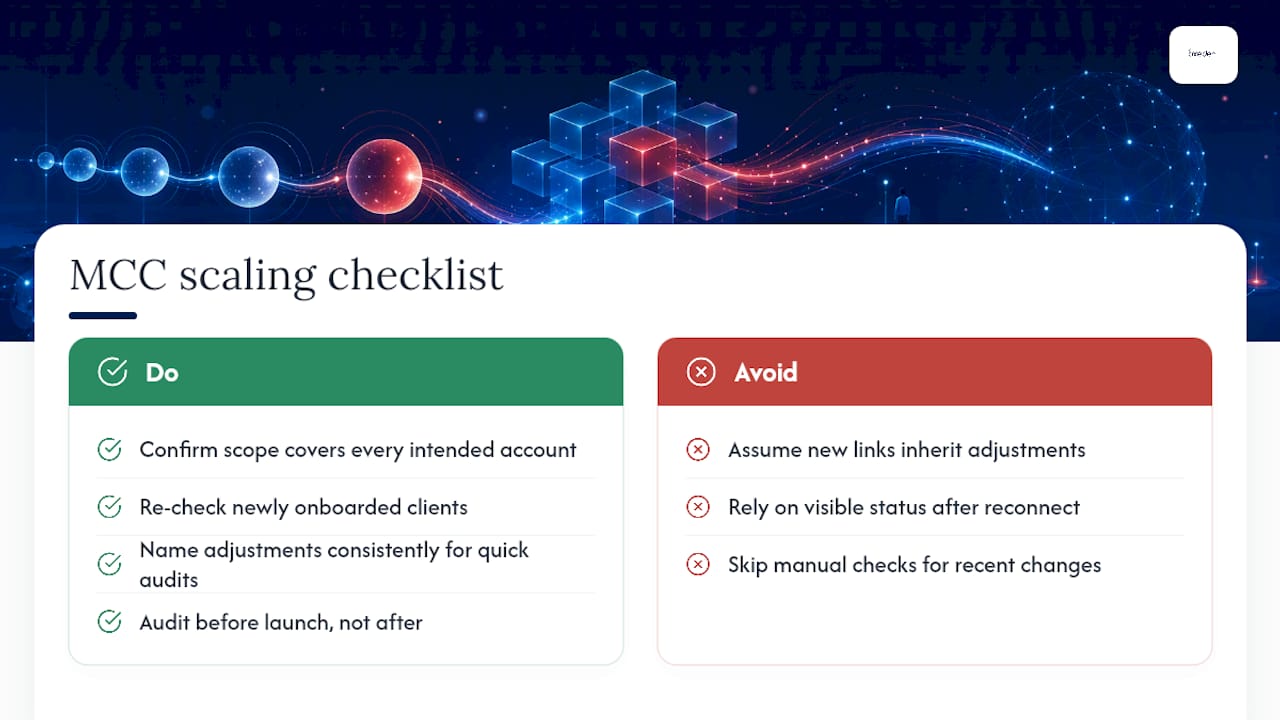
Applying adjustments from a manager account is efficient, but it has a quirk worth building a checklist around. Adjustments created at MCC level apply only to accounts linked at the time of creation, so any client account added afterwards won’t pick it up automatically, and you’ll need to check manually. If an account unlinks and later reconnects, the adjustment may remain visible without actually applying.
For agencies running a cross-client sale event, the checklist is short: confirm scope covers every intended account, re-check newly onboarded clients, and name adjustments consistently so a quick audit catches gaps before launch, not after.

Oxedent’s approach to governing seasonality adjustments
We provide management for Google Ads, Facebook Ads, Google Shopping, and Performance Max campaigns for established ecommerce brands, focusing on profitability and return on ad spend rather than raw click volume. We reach for a seasonality adjustment only when an event genuinely falls outside what Smart Bidding would learn on its own, applying conservative modifiers, consistent naming, and a stakeholder sign-off before anything goes live.
What most PPC managers get wrong about seasonality adjustments
The temptation with seasonality adjustments is to treat them as a lever you pull whenever performance dips. That’s backwards. The research and Google’s own documentation point the same direction: this tool exists for genuine, temporary shocks to conversion rate, not for smoothing out normal weekly noise or covering for a bidding strategy that isn’t fit for purpose.
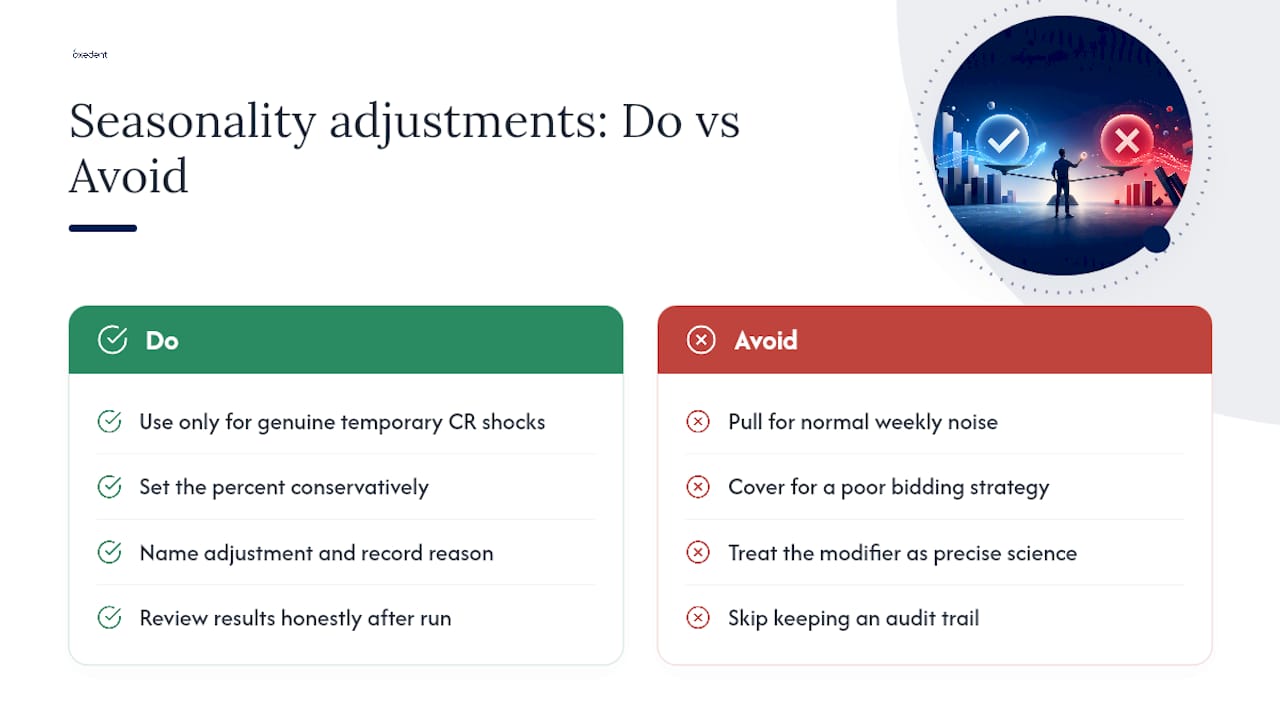
Where conventional advice falls short is in treating the modifier percentage as a precise science. It isn’t. It’s an informed estimate, and the practitioners who get the most value from this feature are the ones who set it conservatively, document why they chose that number, and review the outcome honestly afterwards rather than declaring victory the moment traffic ticks up.
If you take one thing from this, prioritise the audit trail over the percentage itself. A well-named adjustment with a documented reason teaches you something for next year. A guessed number with no record teaches you nothing, however lucky it turns out to be.
— Biplab
Let Oxedent set up and govern your seasonality adjustments
Getting the modifier right is only half the job, the harder part is knowing when Smart Bidding should be left alone entirely. Oxedent runs eCommerce PPC management for established retail brands, covering Google Shopping, Performance Max, feed optimisation, and full account audits, with every adjustment built on conservative estimates and a proper naming convention rather than guesswork.


If your next sale event is close and you’d rather have a specialist set up, scope, and review the adjustment than risk it going wrong at the wrong moment, request an audit with Oxedent and we’ll map out exactly what your account needs before the event, not after it.
Sources
- Create a seasonality adjustment – Google Ads Help
- How to Use Seasonality Adjustments in Google Ads for Better Year‑Round Performance | WordStream
FAQ
What is a seasonality adjustment in Google Ads?
It’s a scheduled conversion rate modifier that tells Smart Bidding to expect a short, major shift in conversion rate, typically for events lasting between 1 and 7 days.
Is $20 a day a good budget for Google Ads?
It depends entirely on your industry, competition, and cost per click, there’s no universal figure that fits every account, and a seasonality adjustment behaves the same mechanically regardless of budget size.
How do I set bid adjustments in Google Ads?
Standard bid adjustments live under campaign settings for audience, device, and location; seasonality adjustments are separate and sit under Tools → Bids → Seasonality Adjustments, where you set a start and end date alongside a conversion rate percentage.
What are the newest Google Ads updates affecting seasonality adjustments?
Performance Max and App campaigns now support seasonality adjustments under any bid strategy, widening where the tool applies beyond the original Search, Shopping, and Display coverage.
How long should a seasonality adjustment run?
Google recommends 1 to 7 days for genuine accuracy, and explicitly cautions that adjustments longer than 14 days become less effective at guiding Smart Bidding correctly.