


Shopify Google Ads integration is defined as the technical connection between your Shopify store, Google Merchant Center, and Google Ads that enables automated product feed syncing and conversion data transfer to power smarter ad delivery. The role of Shopify Google Ads integration goes well beyond simply linking two accounts. It creates two live data pipelines: one that pushes your product catalogue into Google Merchant Center so Shopping and Performance Max ads can display the right products, and one that sends purchase signals back to Google Ads so automated bidding can optimise towards real revenue. Get both pipelines working correctly, and Google’s AI has everything it needs to find buyers at the right moment. Miss either one, and your campaigns are flying blind.
What does Shopify Google Ads integration actually do?
The integration operates across two distinct functions that are easy to confuse: account linking and data connection. Understanding the difference is the fastest way to diagnose why a setup might be underperforming.
Account linking refers to permission grants between platforms. There are three distinct account links required for a complete setup:
- Shopify to your Google account
- Your Google account to Google Ads
- Google Ads to Google Merchant Center
Data connection is what happens after those permissions exist. This is where your product feed flows into Merchant Center and where conversion events travel back to Google Ads. You can have all three account links in place and still have broken data connections. That is the most common source of confusion for store owners who believe their integration is complete when it is not.
The Google & YouTube channel app within Shopify admin manages both layers. It automates product feed syncing, installs the Google Ads conversion tag on your store, and provides a single interface for creating Performance Max campaigns. Without the app, you would need to manage feed uploads and conversion tags separately, which multiplies the risk of errors.


Distinguishing linking from connecting is the key to diagnosing partial integration failures. A store owner might see “connected” status in Shopify but still have no conversion data flowing to Google Ads because the conversion tag was never verified or the wrong Google account was linked.
Pro Tip: Check your Google Ads conversion dashboard for active purchase conversion actions within 48 hours of completing setup. If no conversions appear after a test purchase, the data connection has failed even if the account link shows as active.
How do enhanced conversions improve campaign performance?
Cookie-based conversion tracking has a fundamental weakness: browsers block or delete cookies, and privacy regulations restrict third-party data collection. This means a portion of your actual purchases never gets attributed to the Google Ads click that drove them. For campaigns using Smart Bidding, missing conversions mean the algorithm is working with incomplete information, which leads to suboptimal bids.
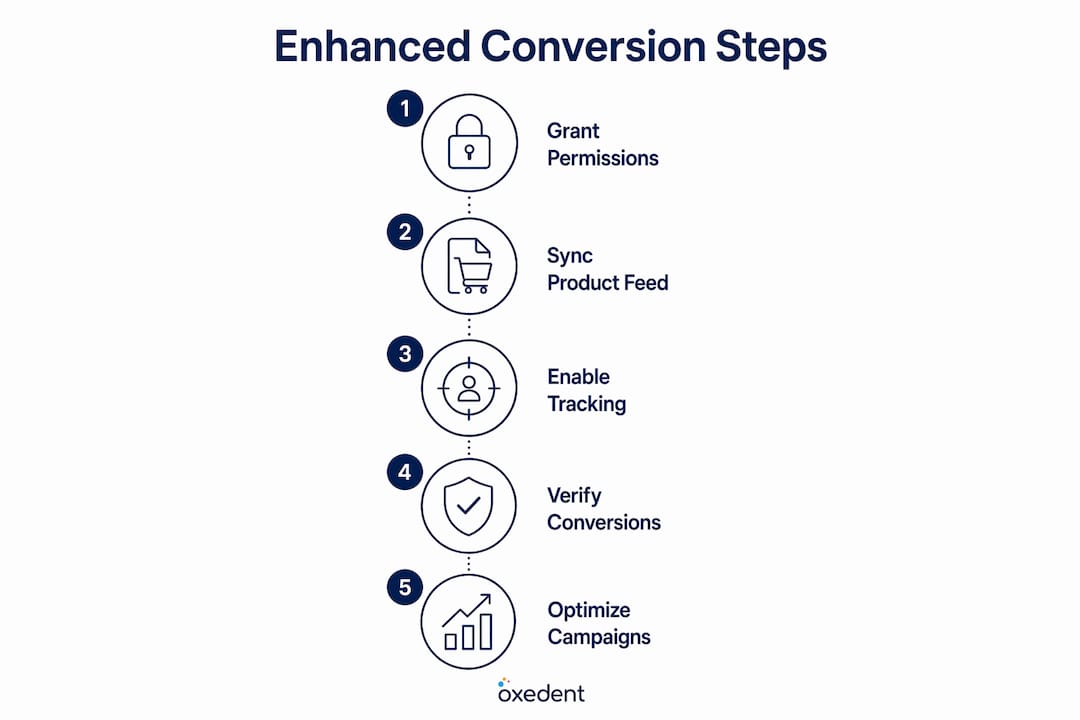

Enhanced conversions solve this by collecting first-party customer data at the point of purchase, hashing it securely, and sending it to Google Ads alongside the standard conversion tag. Google then matches that hashed data against signed-in Google accounts to confirm conversions that cookie tracking missed. The result is a more complete picture of which clicks actually drove sales.
The practical benefits for your Shopify advertising strategies are significant:
- Recovered attribution: Conversions that would have been lost due to cookie restrictions are recaptured, giving you a truer cost-per-acquisition figure.
- Better bidding signals: Smart Bidding strategies like Target ROAS receive more accurate data, which improves their ability to find high-value customers.
- Privacy compliance: Because customer data is hashed before transmission, enhanced conversions work within current privacy frameworks without exposing personal information.
Enhanced conversions address privacy-driven measurement gaps and significantly improve campaign insight and optimisation potential, making them a non-negotiable component of any serious Shopify Google Ads setup in 2026.
Shopify’s Google & YouTube channel app can automate enhanced conversion setup, reducing the technical barrier for store owners who are not developers. The key requirement is accepting Google’s Customer Data Terms within your Google Ads account before the data flow activates.
How to set up your Shopify Google Ads integration correctly
A correct setup follows a specific sequence. Skipping steps or completing them out of order is the primary reason integrations appear to work but deliver poor data quality.
- Install the Google & YouTube channel app from the Shopify App Store and open it within your Shopify admin.
- Connect your Google account, making sure it is the account that has admin or owner access to your Google Ads account. Manager-level MCC access does not suffice and silently fails to enable conversion uploads.
- Accept Customer Data Terms within Google Ads to activate enhanced conversions and remarketing data flows.
- Verify your product feed in Google Merchant Center. Check for disapproved products, missing attributes such as GTIN or price, and feed errors that would prevent products from appearing in ads.
- Link Google Ads to Merchant Center within the Merchant Center interface under “Linked accounts.”
- Configure conversion actions in Google Ads. Set up purchase, add-to-cart, and begin-checkout events. For purchase, use dynamic revenue values rather than a fixed conversion value so that Target ROAS bidding has accurate order revenue to work with.
- Test with a real purchase and confirm the conversion appears in Google Ads within 24 hours.
Pro Tip: Set your purchase conversion action as the primary conversion and mark add-to-cart and begin-checkout as secondary. This tells Google’s bidding algorithm to optimise for completed sales, not upper-funnel activity.
The table below summarises the most common setup mistakes and their fixes:
| Common mistake | What goes wrong | Fix |
|---|---|---|
| Using MCC manager access | Conversion uploads silently fail | Use admin or owner-level Google Ads access |
| Fixed conversion value | Target ROAS bids on wrong revenue data | Switch to dynamic order revenue values |
| Skipping Customer Data Terms | Enhanced conversions never activate | Accept terms in Google Ads account settings |
| Ignoring feed errors | Products disapproved and excluded from ads | Audit Merchant Center diagnostics weekly |
| No conversion test purchase | Broken tag goes undetected | Test within 48 hours of setup completion |
For a detailed walkthrough of the Google Sales Channel setup, Oxedent’s guide covers each step with screenshots and troubleshooting notes.
What role does the integration play in Performance Max campaigns?
Performance Max is Google’s fully automated campaign type that serves ads across Search, Shopping, YouTube, Display, Gmail, and Maps from a single campaign. It replaced Smart Shopping campaigns and now represents the primary way most Shopify merchants run Google Ads for ecommerce. The integration is not just helpful for Performance Max. It is the foundation the entire campaign type is built on.
Performance Max campaigns use your product feed plus conversion goals to automate ad placements and bidding across all Google properties. Without a healthy feed and accurate conversion signals, the AI has no reliable inputs. It cannot match your products to relevant search queries, and it cannot learn which clicks lead to purchases. The result is wasted budget on low-intent traffic.
Here is how feed quality and conversion data each affect Performance Max outcomes:
| Integration element | Impact on Performance Max | Priority |
|---|---|---|
| Product feed completeness | Determines which products appear and in which auctions | Critical |
| Feed attribute accuracy (titles, GTINs) | Affects query matching and ad relevance | High |
| Purchase conversion signal | Drives Smart Bidding and campaign learning | Critical |
| Dynamic conversion values | Enables Target ROAS to optimise for revenue | High |
| Enhanced conversions | Recovers lost attribution for better bidding data | High |
Feed data quality directly influences how often product listings appear and to whom. A product with a vague title like “Blue Shirt” will match far fewer relevant queries than one titled “Men’s slim-fit Oxford blue cotton shirt.” The same principle applies to images, descriptions, and product categories. Weak feed data reduces Google’s ability to match products to search queries, handicapping ad visibility and campaign performance across every surface Performance Max touches.
For a deeper look at how feed structure affects campaign results, Oxedent’s analysis of Performance Max feed builds explains when a feed-only setup is sufficient and when adding creative assets changes outcomes. The AI uses product matching data and conversion goals to determine ad placements and bidding across Google surfaces, which means every improvement to your feed or conversion data directly improves campaign decision-making.
Key takeaways
Shopify Google Ads integration requires two healthy data pipelines: a complete product feed flowing into Google Merchant Center and accurate purchase conversion signals returning to Google Ads, with both underpinned by correct account permissions.
| Point | Details |
|---|---|
| Two pipelines, not one | Feed syncing and conversion tracking are independent; failure in either reduces ad performance. |
| Account access matters | Admin or owner-level Google Ads access is mandatory; MCC manager access silently breaks conversion uploads. |
| Enhanced conversions are non-negotiable | Hashed first-party data recovers lost attribution and improves Smart Bidding accuracy. |
| Feed quality drives Performance Max | Accurate titles, GTINs, and attributes determine which auctions your products enter. |
| Dynamic conversion values are critical | Using order revenue rather than fixed values allows Target ROAS to optimise for actual profit. |
Why most Shopify merchants underestimate this integration
I have reviewed hundreds of Shopify Google Ads accounts, and the pattern is consistent. Merchants treat the integration as a one-time checkbox rather than an ongoing data health responsibility. They install the Google & YouTube channel app, see a green “connected” status, and assume the work is done. Weeks later, they are puzzled by poor Performance Max results or inflated cost-per-acquisition figures, not realising that a permission error or feed disapproval has been silently degrading their data for the entire period.
The shift towards privacy-first tracking has made this worse. Cookie-based attribution used to mask some of these problems by over-attributing conversions. Now that browsers and regulations have tightened, the gaps are more visible. Merchants who set up enhanced conversions and use dynamic revenue values are seeing their bidding algorithms perform noticeably better, not because the campaigns changed, but because the data feeding them became accurate.
My advice is to treat your feed and your conversion tracking as two separate audits, conducted monthly. Check Merchant Center diagnostics for disapproved products. Verify your purchase conversion action is recording with revenue values attached. Confirm enhanced conversions are active. These three checks take under 30 minutes and prevent the slow performance decay that catches most merchants off guard.
Start simple: get purchase tracking right with dynamic values before worrying about add-to-cart micro-conversions. One accurate primary signal is worth more than five noisy secondary ones. Scale the complexity of your setup only once the profitable basics are confirmed and working. For guidance on fixing conversion attribution issues, the detail is in the data, not the campaign settings.
— Biplab
Ready to get more from your Shopify Google Ads setup?
Getting the technical integration right is only half the challenge. The other half is knowing how to use that data to build campaigns that actually scale profitably. Oxedent specialises exclusively in eCommerce PPC, which means every campaign we manage is built on a correctly configured Shopify and Google Ads foundation, with feed optimisation, conversion tracking verification, and Performance Max strategy included as standard.

If your current campaigns are not delivering the return on ad spend your store deserves, or if you suspect your integration has gaps you have not been able to diagnose, Oxedent’s eCommerce PPC management service is built for exactly this situation. We work with established Shopify merchants who are ready to scale, not start from scratch. Explore how a properly integrated, professionally managed Google Ads account can change your revenue trajectory.
FAQ
What does Shopify Google Ads integration do?
Shopify Google Ads integration connects your product catalogue to Google Merchant Center and sends purchase conversion data to Google Ads, enabling automated ad delivery and Smart Bidding. Both the product feed and conversion tracking must function correctly for campaigns to perform well.
Why is my conversion tracking not working after linking Shopify to Google Ads?
The most common cause is insufficient account permissions. Admin or owner-level access is required on your Google Ads account; MCC manager access silently fails to enable conversion uploads, which means no purchase data reaches Google Ads.
What are enhanced conversions and do I need them for Shopify?
Enhanced conversions use hashed first-party customer data to recover conversions that cookie-based tracking misses, improving attribution accuracy and Smart Bidding performance. For any Shopify store running Performance Max or Target ROAS campaigns, they are a necessary part of the conversion setup process.
How does feed quality affect my Google Ads performance?
Weak product feed data reduces Google’s ability to match your products to relevant search queries, which limits ad visibility and wastes budget on poor-fit traffic. Accurate product titles, GTINs, and categories directly determine which auctions your products enter across Shopping and Performance Max.
How often should I audit my Shopify Google Ads integration?
Conduct a feed and conversion tracking audit at least once per month. Check Google Merchant Center for disapproved products, verify your purchase conversion action is recording dynamic revenue values, and confirm enhanced conversions remain active after any Shopify theme or app updates.