


A promotional feed (sometimes called a promotions data source) is a structured file, typically a Google Sheet, tab-delimited TXT, or XML document, that tells Google Merchant Center which special offers to display alongside your product listings. In short: use the Promotions Builder for a single, one-off offer; use a promotions feed when you are running multiple or recurring promotions and need bulk management. Google Merchant Center supports promotions in the UK, and you must register a promotions data source within the same Merchant Center account that holds your product feed.
Table of Contents
- How a promotions feed works and where your offers appear
- Are you eligible? Merchant Center preconditions and UK policy notes
- Required promotion attributes and supported file formats
- How to prepare, register, and upload a promotions feed to Google Merchant Center
- Promotions Builder vs a promotions feed: which should you use?
- Why promotions fail to appear and how to fix them
- Optimising your promotional feed for higher engagement
- Copy-paste examples: CSV rows and a short XML snippet
- How Oxedent manages promotional feeds for UK merchants
- Key takeaways
- The mistake most merchants make with promotional feeds
- Oxedent helps UK merchants get promotions live and performing
- Useful sources and official references
How a promotions feed works and where your offers appear
A promotions feed connects offer metadata to your product listings so Google can attach a “special offer” tag to Shopping ads and organic listings. Without the feed, that tag simply does not appear, regardless of how good your underlying product data is.
Once uploaded and approved, your promotions can surface across:
- Google Shopping tab — the most prominent placement, shown directly beneath the product title and price
- Google Search results — as a clickable “special offer” link within Shopping ads
- Google Chrome — deal alerts and price-drop notifications for signed-in users
- Google Images and other Google properties — where Shopping listings are eligible
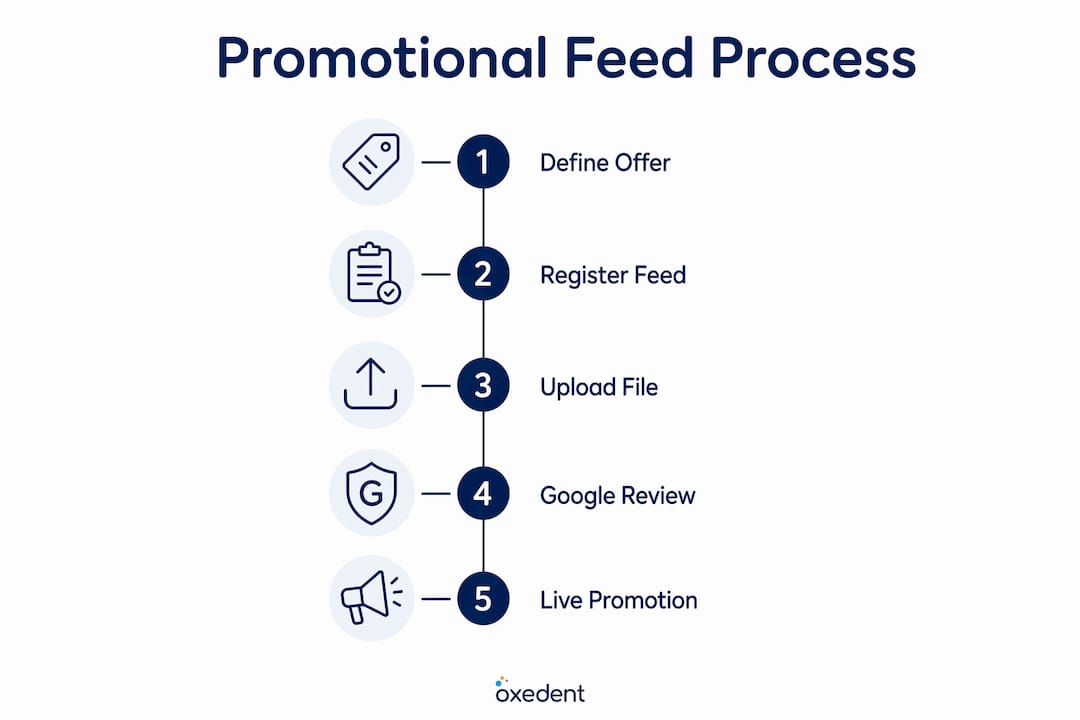
The flow is straightforward. You define a promotion in your feed file, register that file as a promotions data source in Merchant Center, map the promotion_id to matching product IDs in your product feed, Google reviews the content for editorial compliance, and the offer goes live. The mapping step is where most merchants stumble, so keep it front of mind throughout.
The commercial case is clear. DataFeedWatch cites an Office Depot case study showing an improvement in CTR attributed to promotions. A visible “special offer” tag pre-qualifies shoppers before they click, which tends to lift conversion probability alongside raw click volume.



Are you eligible? Merchant Center preconditions and UK policy notes
Eligibility for Google promotions comes down to three things: an active Merchant Center account with approved product listings, landing pages that reflect the promoted offer accurately, and a completed promotions interest or application form.
Google manually reviews every promotion for editorial policy compliance before it goes live. There is also a quota on the number of active promotions you can run simultaneously, so if you are planning a large seasonal sale, check your account-level limits before building a 200-row feed. Promotions that breach policy, contain vague language, or have mismatched dates are held or rejected at this stage.
UK merchants should note a few specifics. Prices and discounts must be formatted in GBP (£) and must match the prices shown on your landing page at the time the promotion is active. Shipping and returns information on the landing page must be consistent with your Merchant Center account settings. Google’s promotions specification confirms UK availability, but country targeting must be set correctly in your data source registration.
Pro Tip: Before uploading a large promotions feed, navigate to the “Promotions” section of your Merchant Center account and confirm that the feature is enabled. Some accounts require you to submit an interest form to unlock it. Doing this check first saves you from a silent upload failure where the file processes but no promotions appear.
Required promotion attributes and supported file formats
Every valid promotions feed row must include six required attributes. Optional attributes add richness but will not cause rejection if absent.
Required attributes at a glance: promotion_id, product_applicability, offer_type, long_title, promotion_effective_dates, redemption_channel.
| Attribute | Allowed values / format | Purpose |
|---|---|---|
promotion_id |
Alphanumeric string, unique per promotion | Links the promotion to matching product IDs in your product feed |
product_applicability |
all_products or specific_products |
Defines whether the offer applies sitewide or to named SKUs |
offer_type |
no_code or generic_code or unique_code |
Specifies how the shopper redeems the offer |
long_title |
Plain text, under 60 characters recommended | The offer description Google displays; must state the discount explicitly |
promotion_effective_dates |
ISO 8601 format: YYYY-MM-DDTHH:MM:SS+HH:MM/YYYY-MM-DDTHH:MM:SS+HH:MM |
Sets the active window for the promotion |
redemption_channel |
online, in_store, or online,in_store |
Tells Google where the offer can be redeemed; missing values trigger rejections |
Optional attributes worth including are image_link, fine_print, promotion_price, and promotion_display_dates.
Supported file formats: Google Sheet (shared with edit access), tab-delimited TXT, and XML. Google Sheet is the fastest option for most merchants because Merchant Center can fetch it on a schedule without a manual re-upload.
A minimal Google Sheet header row looks like this:
promotion_id | product_applicability | offer_type | long_title | promotion_effective_dates | redemption_channel
If you are using Shopify, DataFeedWatch, ChannelEngine, or Feedonomics, each platform has field-mapping templates that translate your platform’s native fields into the Merchant Center spec. Map your platform’s “discount code” field to offer_type and your “sale start/end” fields to promotion_effective_dates as a starting point.
One important constraint: if you set product_applicability to all_products, you cannot simultaneously target specific SKUs in the same promotion record. Each promotion entry must choose one applicability scope.
How to prepare, register, and upload a promotions feed to Google Merchant Center
High-level steps: prepare file → confirm attributes → register data source → upload → validate → publish.
Here is the full sequence:
-
Prepare your file. Build your Google Sheet or TXT file with the required column headers above. Add one row per promotion. Keep
promotion_idvalues short, descriptive, and unique. -
Confirm required attributes. Check that every row has all six required fields populated, that dates are in ISO 8601 format, and that
long_titlestates the discount explicitly (e.g. “Get 25% off all trainers” rather than “Big summer savings”). -
Register a promotions data source. In Google Merchant Center, go to Products > Promotions (or Data sources depending on your Merchant Center version). Select “Add data source” and choose “Promotions”. Enter your file URL or upload directly. Set the fetch schedule if using a Google Sheet.
-
Upload and fetch. Trigger a manual fetch or wait for the scheduled fetch. Merchant Center will process the file and surface any attribute errors in the diagnostics panel.
-
Validate with Merchant Center diagnostics. Open the diagnostics tab for your promotions data source. Fix any flagged errors, paying particular attention to
promotion_idmismatches and date format issues. A clean diagnostics panel does not guarantee approval, but it removes the preventable failures. -
Await Google’s editorial review. Google manually reviews promotions before they go live. Allow at least a few business days, particularly around peak sale periods when review queues lengthen.
Copy-ready example row (Google Sheet / CSV):
SUMMER25PCT-2026 | specific_products | generic_code | Get 25% off selected running shoes | 2026-06-01T00:00:00+01:00/2026-06-30T23:59:59+01:00 | online
Map SUMMER25PCT-2026 as the promotion_id in your product feed’s promotions column for every SKU the offer should cover. For a deeper look at structuring your product feed before adding promotions, that foundation work pays dividends here.
Pro Tip: Test with a single low-risk SKU first. Register the promotions data source, map one product ID, and confirm the offer appears correctly before scaling to your full catalogue. This staged approach catches mapping errors without affecting your entire range.
Promotions Builder vs a promotions feed: which should you use?
Use the Promotions Builder for a single, occasional offer. Use a promotions feed when you are running multiple or recurring promotions and need automation.

The Promotions Builder is Google’s in-Merchant Center UI for creating promotions manually. It is quick, requires no file preparation, and works well for a one-off flash sale or a single discount code. The trade-off is that every edit requires you to return to the UI, and managing more than two or three concurrent promotions this way becomes error-prone.
A promotions feed scales where the Builder cannot. Industry practitioners consistently recommend feeds for established brands because the file format supports bulk management, automated scheduling, and precise ID mapping across large catalogues. If you are running a Black Friday sale with 50 product-specific discounts, a feed is the only practical route.
The trigger points for switching from Builder to feed include having multiple concurrent promotions active at once.
- Promotions that repeat on a schedule (weekly deals, monthly clearance)
- Integration with a feed management tool like DataFeedWatch, ChannelEngine, or Feedonomics
- A catalogue large enough that manual ID entry in the Builder would take hours
For UK merchants scaling their Shopping campaigns, the feed approach also integrates naturally with Google Shopping ad strategy at the campaign level, giving you a single source of truth for both product data and offer data.
Why promotions fail to appear and how to fix them
Mismatched promotion_id mapping between the promotions feed and the product feed is the single most common reason a promotion never shows. If the ID in your promotions file does not exactly match the ID referenced in your product feed, Google has no way to attach the offer to a listing.
Common errors and fixes:
- Mismatched
promotion_id— Cross-check the exact string (case-sensitive) between both feeds. A trailing space or capitalisation difference is enough to break the link. - Vague
long_title— “Big savings” or “Huge discount” will be rejected. State the exact amount: “Save £10 on orders over £50”. - Missing
redemption_channel— This field is mandatory. Omitting it is one of the most frequent rejection triggers. - Incorrect date format — Dates must follow ISO 8601 precisely. A common mistake is using
DD/MM/YYYYinstead ofYYYY-MM-DDTHH:MM:SS+HH:MM. product_applicabilitymisuse — Settingall_productswhen you intend to target specific SKUs means the promotion either applies to everything or fails mapping checks.- Quota limits reached — If your account has hit its active promotion limit, new promotions queue rather than go live. Check your account limits in Merchant Center settings.
- Policy violations — Promotions that require a minimum spend must state it clearly. Offers that cannot be verified on the landing page will be rejected.
Quick diagnostic checklist in Merchant Center:
- Go to Products > Promotions and open the diagnostics tab for your promotions data source.
- Review rejection reason codes — Google provides specific codes for editorial failures, attribute errors, and mapping issues.
- Cross-reference the
promotion_idvalues in the promotions feed against the product feed IDs. - Check the landing page URL for each affected product to confirm the offer is visible and the price matches.
Pro Tip: After an editorial rejection, the fastest fix is to rewrite long_title to state the discount explicitly (amount or percentage, minimum spend if applicable) and confirm all six required attributes are present. Resubmit and allow another review cycle. Do not simply re-upload the same file — Google will reject it again for the same reason.
Optimising your promotional feed for higher engagement
The optimisation goal is simple: clarity, accuracy, and measurement. A promotion that passes editorial review but uses a vague title still underperforms because shoppers cannot quickly assess whether the offer is relevant to them.
Crafting long_title and fine_print:
Keep long_title under 60 characters. Google flags vague titles as editorial failures and titles that exceed display limits get truncated in Shopping ad units, which reduces CTR. “Get 20% off all women’s boots” is better than “Women’s footwear sale”. Use fine_print for conditions (minimum spend, excluded products, expiry) so the main title stays clean and compelling.
KPIs to track after a promotions feed goes live:
| KPI | Tracking approach | Attribution note |
|---|---|---|
| CTR lift | Compare Shopping campaign CTR before and during promotion period | Segment by campaign or product group |
| Conversion rate | Monitor via Google Ads conversion tracking | Attribute to the promotion window, not the full campaign |
| Average order value | Track in GA4 or your ecommerce platform | Useful for minimum-spend promotions |
| Incremental ROAS | Compare ROAS for promoted vs non-promoted SKUs | Use product-level segmentation in Google Ads |
For feed optimisation techniques that apply to both product and promotions data, the same data quality principles carry over: accurate titles, correct attribute values, and consistent ID mapping.
Tools like DataFeedWatch, ChannelEngine, and Feedonomics all offer scheduled feed refreshes and mapping rule editors that reduce manual errors at scale. Shopify merchants can use native Google channel integrations or third-party apps to push promotion data automatically. For catalogue-heavy retailers, working with a specialist feed management tool or an agency is the point at which manual management stops being viable. Proper feed mapping from supplier catalogues is a useful reference for understanding how field transformation works in practice.
Pro Tip: Schedule your promotions feed to refresh at least once every 24 hours during an active sale. Prices and availability change, and a stale feed can cause your promotion to display against out-of-stock products or incorrect prices, which triggers policy issues and wastes ad spend.
Copy-paste examples: CSV rows and a short XML snippet
These examples cover three common promotion types. Drop them into a Google Sheet or pass them to your developer as a starting point.
Example rows (pipe-delimited, ready for CSV or Google Sheet):
Sitewide percentage discount:
SITE20-JUNE26 | all_products | no_code | Get 20% off sitewide this weekend | 2026-06-07T00:00:00+01:00/2026-06-08T23:59:59+01:00 | online
Product-specific fixed discount:
BOOT10-JUNE26 | specific_products | no_code | Save £10 on selected ankle boots | 2026-06-01T00:00:00+01:00/2026-06-30T23:59:59+01:00 | online
Free gift with purchase:
FREEGIFT-JUNE26 | specific_products | generic_code | Free tote bag with orders over £40 | 2026-06-01T00:00:00+01:00/2026-06-14T23:59:59+01:00 | online
XML snippet (same sitewide promotion in XML format):
<promotions>
  <promotion>
    <promotion_id>SITE20-JUNE26</promotion_id>
    <product_applicability>all_products</product_applicability>
    <offer_type>no_code</offer_type>
    <long_title>Get 20% off sitewide this weekend</long_title>
    <promotion_effective_dates>
      2026-06-07T00:00:00+01:00/2026-06-08T23:59:59+01:00
    </promotion_effective_dates>
    <redemption_channel>online</redemption_channel>
  </promotion>
</promotions>
For the complete attribute list, edge cases, and the official feed template, refer to the Google Merchant Center promotions data specification directly. The spec is the authoritative source and is updated when Google changes requirements.
How Oxedent manages promotional feeds for UK merchants
Oxedent’s feed management workflow follows a consistent sequence: audit the existing product feed for ID consistency and data quality, build promotion feed templates matched to the client’s platform (Shopify, WooCommerce, or custom), stage the promotions data source in a test environment against a small SKU set, register and upload to Merchant Center, then monitor diagnostics and iterate based on rejection codes and performance data.
For large-scale launches, such as Black Friday or seasonal clearance events, the practical priorities are quota checks before the feed goes live, staged rollouts starting with the highest-margin product groups, and automated monitoring of the diagnostics panel so that a rejection does not silently kill a promotion mid-sale.
Promotional feeds are an engagement tool as much as a discount mechanism. A well-structured feed with a clear
long_titlepre-qualifies shoppers before they click, which means the traffic arriving at your product pages is already primed to convert. The merchants who get the most from promotions are not necessarily the ones offering the deepest discounts — they are the ones whose feed data is accurate, their mapping is clean, and their landing pages match what the offer promises.
The point at which a merchant should bring in an agency is typically when concurrent promotions exceed three or four, when the catalogue is large enough that manual ID mapping becomes error-prone, or when a previous promotion failed to display and the root cause was not immediately obvious from diagnostics alone.
Key takeaways
A promotions feed is the most reliable way to display special offers on Google Shopping at scale, and the promotion_id mapping between your promotions file and your product feed is the single attribute that determines whether your offers appear at all.
| Point | Details |
|---|---|
| What a promotions feed does | It attaches offer metadata to product listings so Google can display a “special offer” tag across Shopping, Search, and other Google surfaces. |
| Builder vs feed decision rule | Use the Promotions Builder for one-off offers; switch to a feed when you have more than three concurrent promotions or need automated scheduling. |
promotion_id mapping is critical |
The ID in your promotions file must exactly match the product feed reference; a single character mismatch prevents the offer from appearing. |
long_title under 60 characters |
State the discount explicitly and keep the title concise to pass editorial review and avoid truncation in ad units. |
| Oxedent’s approach | Oxedent audits feed structure, builds promotion templates, and manages Merchant Center registration and diagnostics for UK ecommerce merchants. |
The mistake most merchants make with promotional feeds
The most common error is not a technical one. Merchants spend time building a well-structured feed, get it uploaded, and then assume that because the file processed without errors, the promotions are live. They are not, necessarily. Google’s editorial review is a separate gate, and a promotion can sit in “pending” for days without any notification unless you are actively checking the diagnostics panel.
The fastest corrective action: set a calendar reminder to check Merchant Center diagnostics 48 hours after every promotions feed upload. If a promotion is pending or rejected, you have time to fix and resubmit before the sale window closes. That one habit prevents the majority of “my promotion never showed” situations.
Oxedent helps UK merchants get promotions live and performing
Getting a promotions feed built is one thing. Getting it approved, mapped correctly, and contributing measurable ROAS uplift is another. Oxedent works with established UK ecommerce brands to handle the full cycle: feed audits and build, Merchant Center setup, promotions data source registration, and ongoing diagnostics monitoring so that your offers go live on schedule and stay live throughout the sale period.

If your promotions have previously failed to display, or you are scaling into a multi-product sale and want the feed handled by a specialist, Oxedent’s ecommerce PPC management service covers the complete feed and campaign layer. No long-term contracts. UK-focused. Built for merchants with real ad budgets and real revenue targets.
The guidance in this article is general information based on Google Merchant Center’s published specifications. Confirm current requirements with Google’s official help centre or a qualified specialist for your specific account.
Useful sources and official references
- Google Merchant Center: Promotions data specification — the authoritative attribute list, formatting rules, and supported markets
- Google Merchant Center: Create a promotion (Step 2) — registration, editorial review process, and the promotions interest form
- DataFeedWatch: Google Shopping feed types — overview of promotions feed attributes and CTR case data
- GoDataFeed: How to implement a Google Promotion — practical implementation guide and feed template guidance
- WooCommerce: Google product feed promotion feeds — platform-specific mapping guidance for WooCommerce merchants
- JewelCloud: Product feed and catalogue mapping — practical feed mapping reference for catalogue-driven retailers