


A search term report is a record of the actual queries users typed before your ad appeared, paired with performance metrics such as clicks, impressions, cost, conversions, and conversion rate. Available in Google Ads and Amazon Advertising, it is the most direct window into how real people describe what they want. The single most valuable action you can take from it: scan for irrelevant queries to add as negative keywords, and flag high-intent queries to promote into dedicated keywords. Search terms insights, Google’s aggregated companion tool, adds a layer of trend data on top of that raw query list.
Key takeaways
A search term report shows the actual queries that triggered your ads; the highest-value action is to promote high-intent queries into exact-match keywords and negate irrelevant ones weekly.
| Point | Details |
|---|---|
| What the report is | A record of real user queries that triggered your ads, with full performance metrics per query. |
| Check the Keyword column | Always identify which account keyword triggered a query before adding negatives or pausing terms. |
| Promote high-intent queries | Queries with modifiers like “buy” or “discount” that convert well belong in their own exact-match ad groups. |
| Review weekly | Active ecommerce campaigns need weekly negative and promotion reviews; monthly for structural changes. |
| Oxedent’s approach | Oxedent integrates weekly search-term analysis into ecommerce PPC management to reduce waste and improve ROAS. |
Table of Contents
- What does a search term report actually show you?
- How does the platform generate the report?
- How does the search terms report differ from search terms insights?
- Where do you find the search terms report in Google Ads and Amazon?
- How to manage keywords based on search term data
- Best practices and common mistakes
- Three examples: query, interpretation, and action
- What the report does not show you
- An agency perspective on search term reports at scale
- Oxedent’s ecommerce PPC management puts this into practice
- Sources
What does a search term report actually show you?
The report surfaces every query that triggered your ads and met the platform’s visibility threshold, alongside the account keyword that matched it. Google Ads Help confirms the standard columns you will see:
- Search term — the exact phrase the user typed; this is the raw signal you are analysing.
- Keyword — the account keyword that triggered the query. Frequently overlooked, this column tells you which keyword is responsible, so you can decide whether to negate the query or pause the keyword entirely.
- Match type — the match type Google assigned to the search term (not necessarily the match type you set on the keyword).
- Impressions — how many times your ad was shown for that query.
- Clicks — how many users clicked through.
- CTR — the ratio of clicks to impressions; a low CTR on a high-impression term often signals a relevance gap between the query and your ad copy.
- Cost — total spend attributed to that query.
- Conversions — completed goals (purchases, sign-ups) driven by that query.
- Conversion rate — conversions divided by clicks; the clearest indicator of query quality.
- Conversion value — revenue attributed to conversions from that query; critical for ROAS calculations.
- Campaign / Ad group — where the query was served, which matters when the same query appears across multiple campaigns.
A high-cost, zero-conversion search term is the most common trigger for action. Say you are spending £40 on “how to clean running shoes” but recording no purchases: that query is informational, not transactional, and it belongs on your negative keyword list.
How does the platform generate the report?
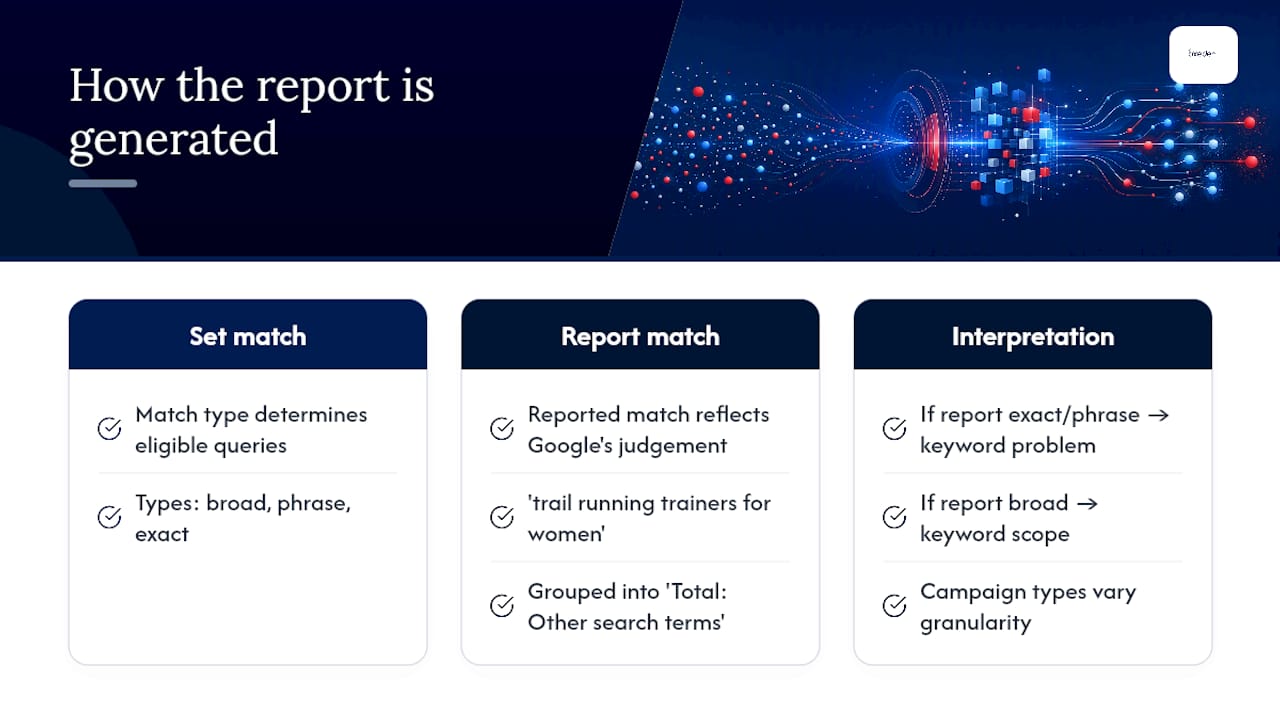
Google matches a user’s query to your keyword using its match-type logic, then records the query in the report. The match type you set on a keyword (broad, phrase, or exact) determines which queries are eligible, but the match type shown in the report reflects Google’s own judgement of how the query relates to your keyword. These two can differ.
A broad-match keyword such as running shoes might trigger the query “trail running trainers for women,” which Google records as an exact-match close variant in the report. That distinction matters for your response: if the match type in the report is exact or phrase, the problem may be the keyword itself; if it is broad, the issue is keyword scope.
Privacy and volume thresholds also shape what you see. Google suppresses queries that did not reach a statistically significant number of users, grouping them into a “Total: Other search terms” row. You cannot see those individual queries, only their aggregate performance. Google’s campaign types such as Performance Max and Standard Shopping also produce search-term data, though the level of granularity and the ability to act on it varies by campaign type.

How does the search terms report differ from search terms insights?
These two tools serve different purposes and should be used at different stages of your optimisation cycle.
Search terms insights groups queries into intent-based categories and subcategories, providing aggregated clicks, impressions, CTR, conversions, and search volume. It also surfaces trends that are invisible in the raw report. The raw search terms report, by contrast, shows individual queries with full metric detail.
| Dimension | Search terms report | Search terms insights |
|---|---|---|
| Granularity | Individual query level | Intent-based categories and subcategories |
| Key metrics | Clicks, cost, conversions, conversion value, match type, keyword | Aggregated clicks, impressions, CTR, conversions, search volume |
| Search partners data | Included (with caveats) | Processed separately; may differ |
| Best use | Adding negatives, promoting keywords, bid changes | Trend detection, creative direction, landing-page strategy |
| Data processing | Near real-time | Aggregated; processing lag applies |
Use the search terms report when you need query-level precision: deciding which terms to negate, which to promote, and which ad groups to restructure. Switch to search terms insights when you want to understand broader intent shifts, spot seasonal patterns, or brief a copywriter on the language your audience actually uses.
Where do you find the search terms report in Google Ads and Amazon?
Google Ads
- Sign in to your Google Ads account and select the campaign or ad group you want to analyse.
- In the left-hand navigation, click Keywords.
- Click the Search terms tab that appears at the top of the keywords view.
- To add the Keyword column (not shown by default), click the columns icon, select Attributes, and tick Keyword. Also add Match type if it is not already visible.
- Apply a date range of at least 30 days to give the data statistical weight; 90 days is preferable for lower-traffic accounts.
- Click Download to export as CSV or Excel. Filter by cost or impressions before exporting to keep the file manageable.
Pro Tip: Always export with the Keyword column included. Without it, you cannot tell which account keyword triggered a query, and you risk adding negatives that block the wrong traffic.
Amazon Advertising
- Log in to your Amazon Ads console and navigate to Measurement & Reporting.
- Select Sponsored Products (or Sponsored Brands/Display as relevant) and click Reports.
- Choose Search term report from the report type dropdown.
- Set your date range (Amazon recommends reviewing frequently to catch wasted spend early) and click Create report.
- Download the CSV and review the Customer search term, Targeting, Clicks, Spend, Orders, and Sales columns.
Amazon’s report differs from Google’s in one important respect: it shows the targeting expression (the keyword or product target you set) alongside the customer search term, which is the equivalent of Google’s Keyword column. Conversion data in Amazon is tied to attributed orders within a 7-day or 14-day window, so align your date range to that attribution model.
How to manage keywords based on search term data
A repeatable workflow turns raw query data into account improvements. Here is the agency-grade process:
- Set your review cadence. For active ecommerce campaigns, weekly reviews catch waste before it compounds. A monthly deep-dive covers structural decisions such as new ad groups and landing-page changes.
- Filter for volume and cost. Sort by cost descending and set a minimum of five clicks. This surfaces the queries consuming budget, not just the long tail.
- Tag each query into an action bucket:
- Negative — irrelevant or informational queries with no conversion signal.
- Promote to keyword — high-intent queries (containing modifiers like “buy”, “discount”, “free delivery”, “size”) with a conversion rate above your account average.
- New ad group — a cluster of related high-intent queries that would benefit from a dedicated ad and landing page.
- Bid change — a relevant query converting well but at a cost-per-conversion above target; reduce bids rather than negate.
- Landing page or ad copy review — a relevant, high-intent query with a low conversion rate, suggesting a disconnect between the ad and the page.
- Check the Keyword column before acting. As Search Engine Land notes, advertisers frequently skip this step and add negatives that block the wrong keyword. If the triggering keyword is already tightly matched, the fix may be to pause or restructure the keyword rather than add a negative.
- Promote winners into exact-match keywords. Rather than leaving a high-performing query to be served by a broad-match keyword, create an exact-match version in its own ad group. This gives you control over bids and ad copy and prevents the query from being diluted across multiple ad groups.
- Use a search terms analyser for scale. When you are managing hundreds of queries, tools that sort queries into decision-ready buckets (waste, high-intent, informational, product variants) cut analysis time significantly.
To see how smart keyword research connects to this workflow, the process of moving from raw queries to structured keyword lists is covered in detail there.
You promote it to an exact-match keyword [personalised leather handbag gift], write an ad that mentions personalisation, and link to a product page filtered by personalised options. CTR rises and cost-per-conversion drops further because the ad is now directly relevant to the query.
Best practices and common mistakes
Do’s
- Always check the Keyword column before adding a negative. Knowing which keyword triggered the query determines whether you negate the term or restructure the keyword.
- Use match-type awareness. A broad-match keyword generating irrelevant queries is a structural problem; adding negatives treats the symptom, not the cause.
- Prioritise high-intent modifiers. Queries containing “buy”, “price”, “discount”, “next-day delivery”, or specific product attributes are your highest-value signals. Search Engine Journal recommends building precise keyword clusters around these modifiers to capture better ROI.
- Promote consistent performers into exact-match keywords rather than leaving them exposed to broad-match competition.
- Review weekly for active ecommerce campaigns and conduct a monthly structural audit covering ad groups, landing pages, and keyword architecture.
Don’ts
- Don’t add large volumes of negatives without diagnosing the root cause. If dozens of irrelevant queries are appearing, the problem is likely a broad-match keyword or a poorly structured campaign, not a list of missing negatives.
- Don’t ignore the “Other search terms” aggregate row. If that row carries significant cost or conversions, it signals hidden query volume worth investigating through a longer date range or search terms insights.
- Don’t treat the report as a one-time clean-up task. Query patterns shift with seasonality, competitor activity, and Google’s match-type updates. A static negative list becomes stale within weeks.
Quick audit checklist:
- Keyword column visible and exported
- Date range covers at least 30 days
- Sorted by cost descending
- High-cost, zero-conversion terms identified and actioned
- High-intent modifiers flagged for promotion
- “Other search terms” row reviewed for scale
For a broader view of how Google Ads agency reporting integrates search-term analysis into weekly dashboards, that resource covers the metrics and cadence in detail.
Three examples: query, interpretation, and action
-
Informational query triggering a shopping ad. A user searches “how do noise-cancelling headphones work” and your Shopping ad appears. The query has 40 impressions, 3 clicks, and zero conversions. This is a research-phase query with no purchase intent. Add it as a negative keyword. The landing-page gap here is also worth noting: if this query appears frequently, it may indicate your product pages lack sufficient technical content to convert researchers.
-
Transactional high-intent query. A user searches “buy wireless noise-cancelling headphones under £150.” Your broad-match keyword
noise-cancelling headphonestriggered it. The query has a 14% conversion rate over 60 days. Promote it to an exact-match keyword, write an ad that leads with the price point, and link directly to a filtered product listing page. Bid 20–30% above the parent keyword’s CPC to prioritise impression share on this query. -
Unrelated query with cost but no conversions. A user searches “headphone repair near me” and your ad appears. After 25 clicks and £35 spent, there are zero conversions. Add “repair” as a negative keyword at campaign level. Then check the Keyword column: if a broad-match keyword like
headphonestriggered it, consider tightening that keyword to phrase match or adding a broader “repair” negative to the campaign.
What the report does not show you
The search terms report has real limitations, and understanding them prevents misreading the data.
- Privacy thresholds hide low-volume queries. Google suppresses individual queries that did not reach a significant number of users. These appear only in the “Total: Other search terms” row. If that row shows high spend or strong conversion rates, you are missing meaningful query data. Broaden your date range to surface more terms, or use search terms insights to see aggregated intent categories that include some of this hidden volume.
- Search partners data behaves differently. Queries from Google’s search partner network are included in the report but may carry different conversion rates and CPCs. Segment by network in your analysis if search partners represent a meaningful share of your spend.
- Amazon’s attribution windows affect conversion data. Amazon’s search term report attributes orders within a 7-day or 14-day click window. Changing your date range mid-attribution period can make conversion data look incomplete.
- Processing lag between the report and insights. Search terms insights processes data differently from the raw report, so the two will rarely match exactly on the same date range. Use them as complementary tools rather than expecting identical numbers.
Compensating techniques: Extend your sampling window to 90 days for low-traffic campaigns. Cross-reference with Google Analytics 4 site search data to identify queries that reached your site but did not convert. For ecommerce, Google Shopping campaign audits often surface query patterns that the search terms report alone misses, particularly for keywordless campaign types.
An agency perspective on search term reports at scale
The search terms report is the most underused lever in most ecommerce PPC accounts. Advertisers treat it as a negative-keyword tool and stop there. That is leaving significant revenue on the table.


At the agency level, the report becomes a weekly intelligence feed. Every Monday, the query data from the previous seven days is filtered, tagged, and distributed: negatives go to the negative keyword list, high-intent queries go to a promotion queue, and queries with strong intent but weak conversion rates trigger a landing-page or feed review. The Keyword column is non-negotiable in this workflow. Without it, you are making structural decisions without knowing which keyword is responsible, which leads to over-negation and wasted restructuring effort.
The most consistent ROAS improvements in ecommerce accounts come not from adding negatives but from systematically promoting high-intent queries into exact-match keywords with dedicated ad copy and product-specific landing pages. A query that converts at twice the account average deserves its own ad group, its own bid, and a landing page built around the exact language the buyer used. That is the difference between a reactive clean-up and a proactive growth strategy.
Oxedent’s ecommerce PPC management puts this into practice
If you are managing a meaningful ecommerce ad budget and the search term workflow above feels like a full-time job on top of everything else, that is because it is. Oxedent’s eCommerce PPC management service builds this exact process into weekly account operations: systematic search-term analysis, negative keyword management, high-intent query promotion, feed optimisation, and Performance Max oversight, all without locking you into a long-term contract.

Every new client engagement starts with a paid search audit that maps current query waste, identifies high-intent terms being served by loose match types, and outlines the structural changes needed to improve ROAS. You get a clear picture of where budget is being lost and where the growth opportunities are, before any ongoing management begins. To find out whether Oxedent is the right fit for your account, visit the eCommerce PPC management page and request an audit.
Sources
The sources below are the most authoritative references for platform specifics and advanced technique validation. Consult official platform documentation before making sweeping account changes, as match-type behaviour and report interfaces are updated regularly.
- About the search terms report – Google Ads Help
- How to read your Amazon search term report – Amazon Ads Help
- Google Ads search terms report: 5 tips for better results
- How To Use The Google Ads Search Terms Report – Search Engine Journal
- Search Terms Analyzer – TLSubmit